

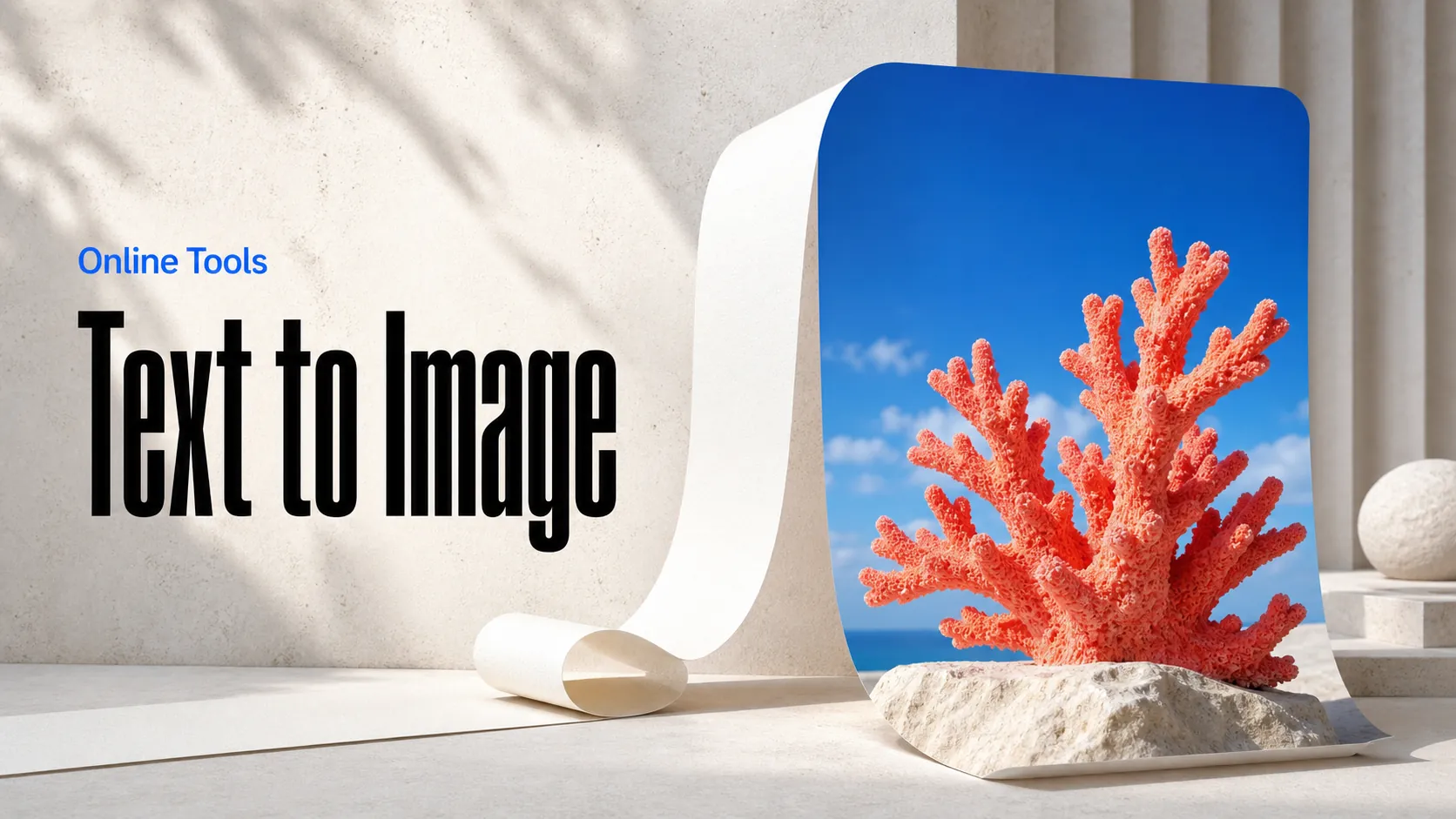
Text to Image
Create AI images from text prompts
Try Google Gemini Omni 1.1 Flash API to animate a required first frame toward an optional end frame with controlled motion and visual continuity.
Google Gemini Omni 1.1 Flash Image-to-Video API helps developers transform a supplied image into a directed AI video clip. Use a still image as the visual starting point, add a natural-language motion brief, and generate a scene that develops with intentional camera work and movement. An optional ending image can guide the destination of the sequence, making the Gemini video API useful for controlled animation workflows on Best Image AI.
Image-Led Video Animation: Start from an uploaded image and build motion around its subject, composition, lighting, and overall visual direction.
Optional End-Frame Guidance: Add an ending image when the clip needs a more deliberate visual destination or a guided transition between two states.
Natural-Language Motion Control: Describe camera movement, subject behavior, environmental change, and pacing alongside the image input.
Scene-Coherent Development: Use the input image as a visual anchor while directing a sequence that feels connected rather than detached from the starting frame.
Flexible Video Presentation: Generate landscape or vertical output for campaign assets, social video, product stories, and mobile-first experiences.
Quality and Timing Choices: Adapt output quality and compact clip length to match prototyping, review, publishing, or production needs.
Input: A starting image plus a natural-language motion prompt describing the desired movement, camera behavior, and scene evolution.
Optional Guidance: An ending image can be supplied to give the animation a controlled final visual state.
Output: A generated video clip delivered through the Gemini Omni 1.1 Flash image-to-video API workflow.
Format Control: Select a horizontal or vertical composition, output quality, and concise duration that fit the target channel.
Capabilities: Image animation, start-to-end visual guidance, prompt-directed camera movement, scene evolution, and creative iteration.
Product Image Animation: Add movement, camera energy, and environmental life to product photography and campaign key visuals.
Social Content Repurposing: Turn still posts, editorial imagery, and launch artwork into short vertical or widescreen video concepts.
Storyboard Development: Use concept frames and key art to test how a visual idea may move before committing to a larger production.
Brand Creative Variations: Create motion-led variants from approved visual direction while retaining a clear starting image for the workflow.
E-commerce and Advertising Video: Build concise product moments, lifestyle sequences, and promotional assets from existing visual materials.
Note Use clear, high-quality source images and describe the intended motion precisely. Prompts that specify subject movement, camera direction, and environmental behavior usually provide more useful animation guidance.
Gemini Omni 1.1 Flash vs. Google Veo Image-to-Video: Google Veo provides established image-to-video workflows. Gemini Omni 1.1 Flash adds a connected route for image animation, text generation, reference-led video, and video editing under one model family.
Gemini Omni 1.1 Flash vs. Runway Image-to-Video: Runway offers a wide creator toolset for generated motion. Gemini Omni 1.1 Flash is designed for developers who want image-led animation and prompt direction in an API-based workflow.
Gemini Omni 1.1 Flash vs. Kling Image-to-Video: Kling is a popular option for expressive image animation. Gemini Omni 1.1 Flash supports a practical path from source image and motion brief to output with optional end-frame guidance.
Gemini Omni 1.1 Flash vs. Pika Image-to-Video: Pika focuses on accessible visual experimentation. Gemini Omni 1.1 Flash is well suited to product teams that need controlled image animation inside a scalable integration.
Gemini Omni 1.1 Flash vs. Luma Dream Machine: Luma Dream Machine is recognized for fast visual ideation. Gemini Omni 1.1 Flash differentiates through image-led control, optional ending-image direction, and related video workflows available through the same API family.
Explore several AI creation tools for quick image and video workflows in your browser, then scale successful ideas with Best Image AI's production-ready model APIs. Best Image AI provides a unified API layer for all models, making it easy to use and scale your workflows.
Create AI images from text prompts
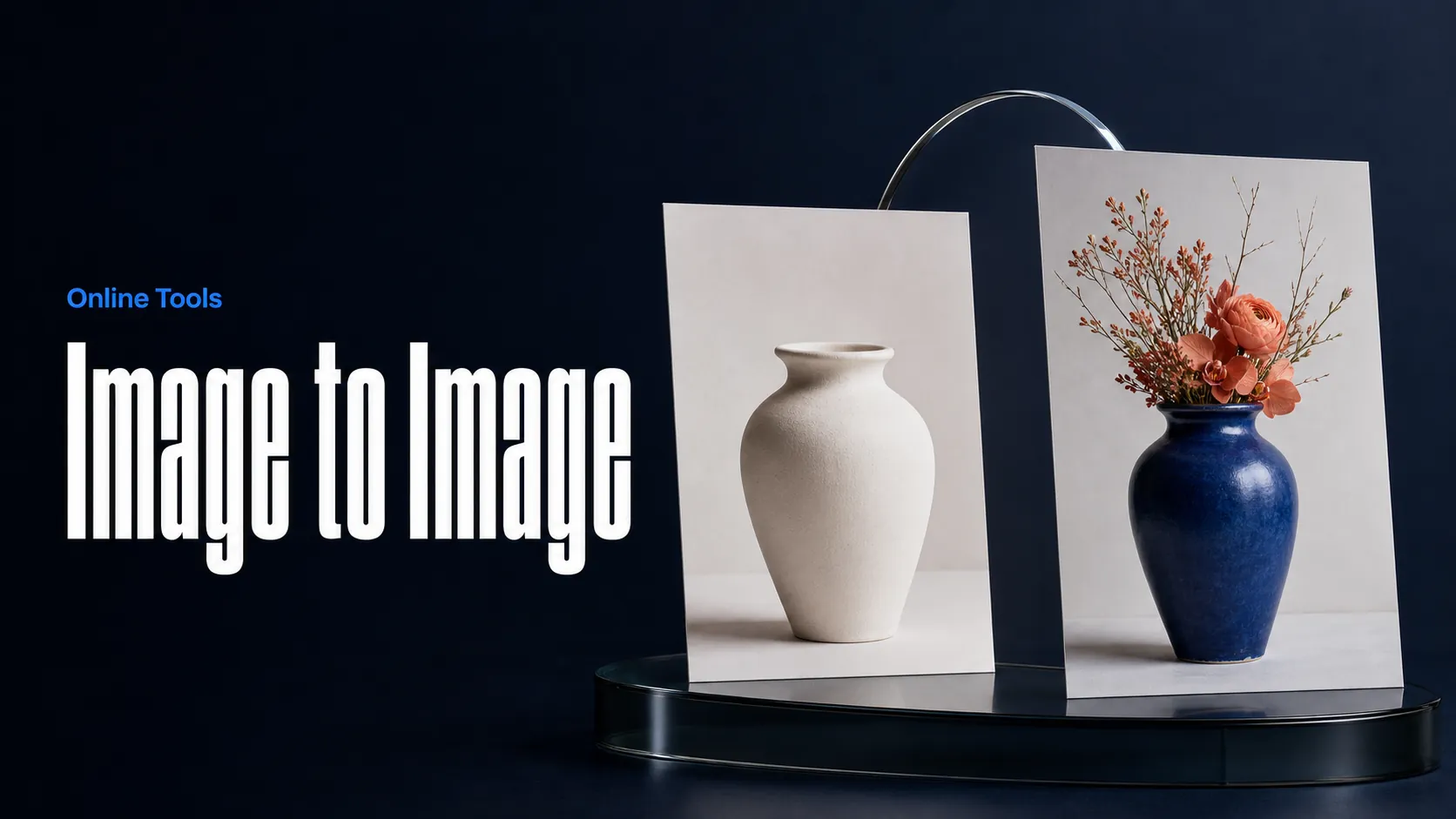
Create AI images from images and text prompts
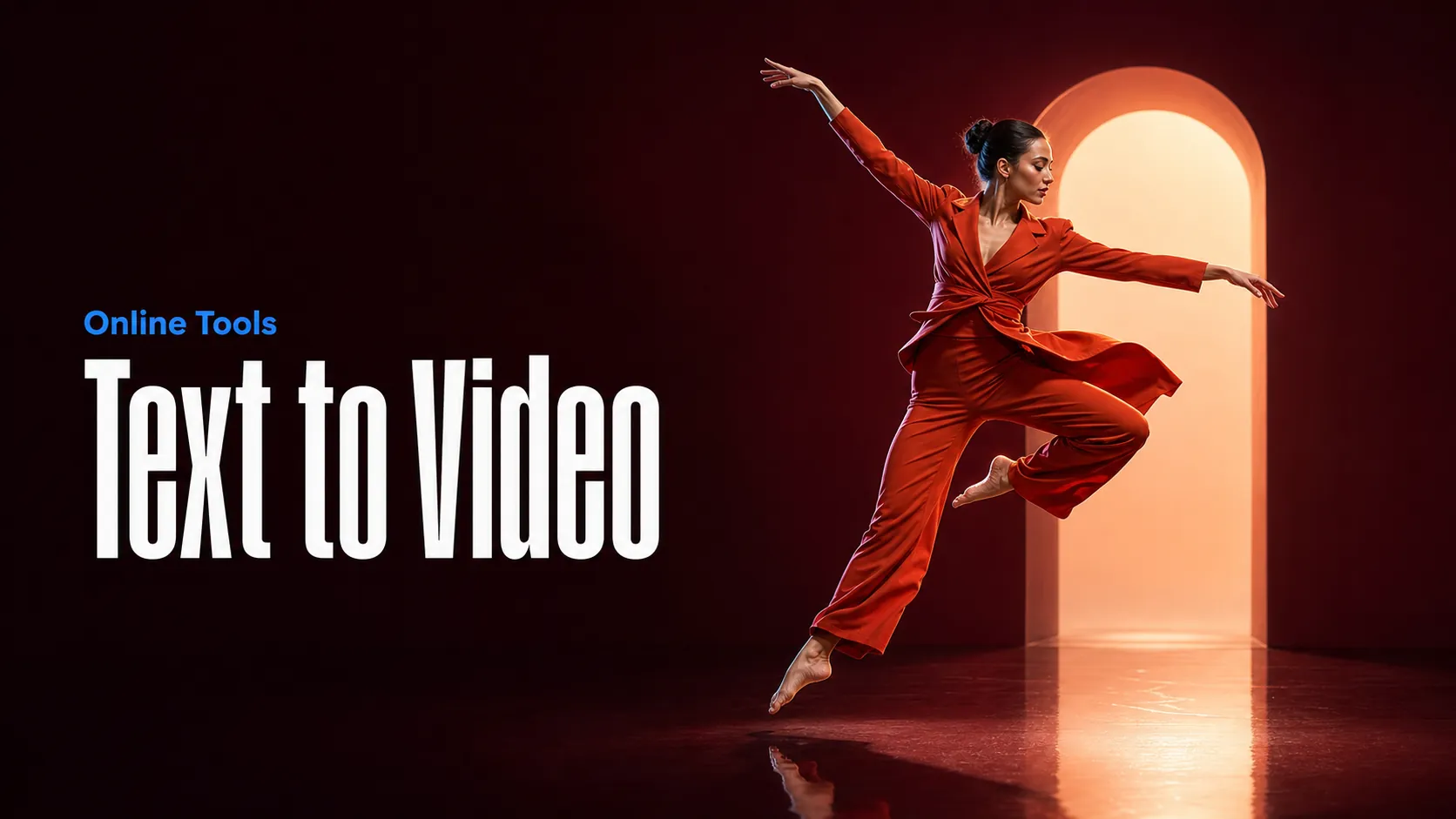
Create AI videos from text prompts
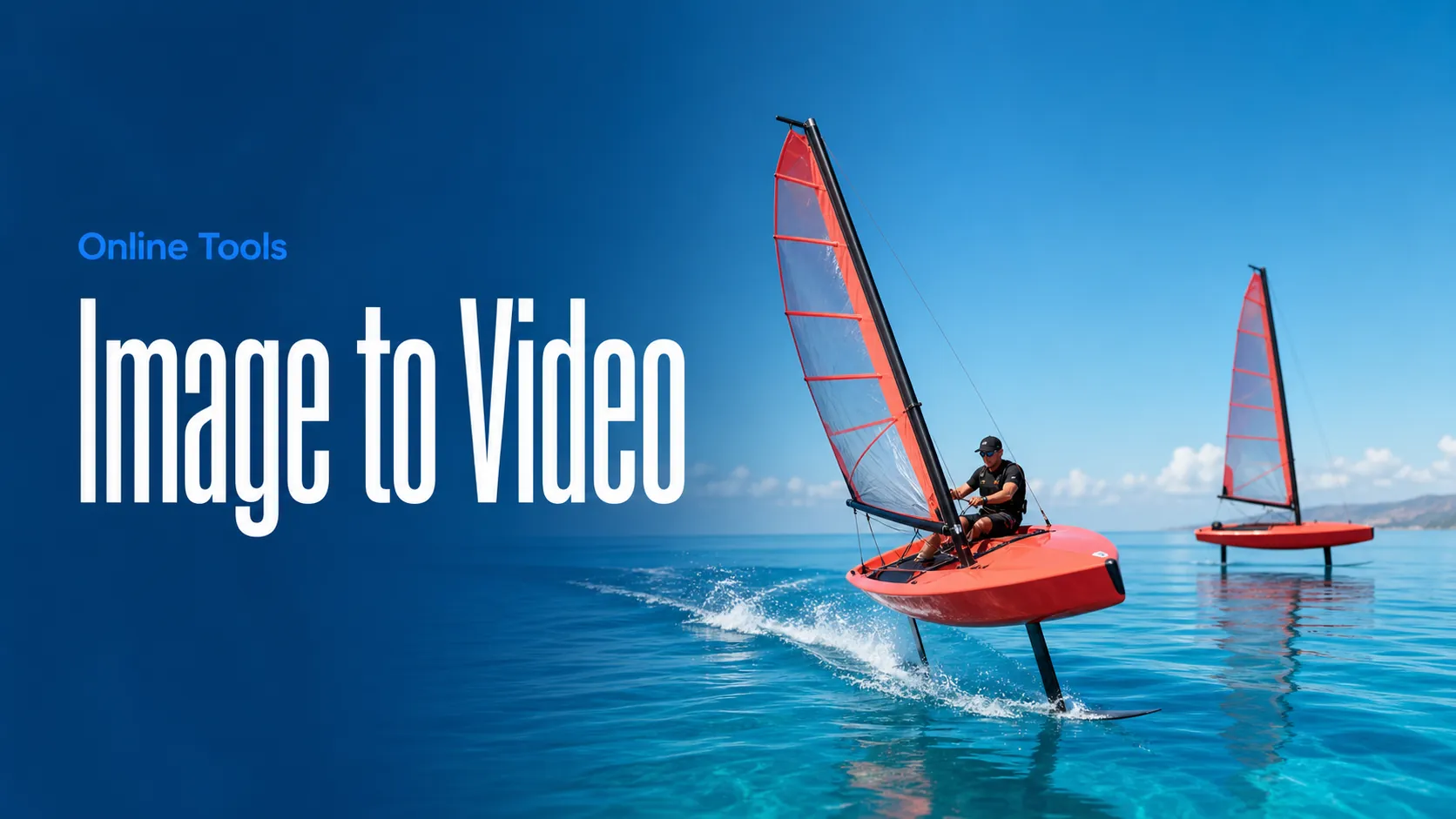
Animate images into AI videos
Create AI images and videos in one unified workspace
Create consistent videos from reference media
Build visual AI image and video workflows on an infinite canvas
const response = await fetch('https://api.flaq.ai/api/v1/video/task', {
  method: 'POST',
  headers: {
    'Content-Type': 'application/json',
    'Authorization': 'Bearer YOUR_API_KEY'
  },
  body: JSON.stringify({
    model_name: 'gemini-omni-1.1-flash-image-to-video',
    prompt: 'The girl walks toward the camera while the city lights shimmer behind her',
    image_url: 'https://example.com/start-frame.jpg',
    image_end_url: 'https://example.com/end-frame.jpg',
    aspect_ratio: '9:16',
    resolution: '1080p',
    duration: 8
  })
});

const { data } = await response.json();
const taskId = data.task_id;
// Step 2: Poll for results
const taskId = data.task_id;

const pollResult = async (taskId) => {
  const res = await fetch(`https://api.flaq.ai/api/v1/video/${taskId}`, {
    headers: { 'Authorization': 'Bearer YOUR_API_KEY' }
  });
  return res.json();
};

while (true) {
  const pollResultData = await pollResult(taskId);
  const status = pollResultData.data.task_status;

  if (status === 'succeed') {
    console.log(pollResultData.data.task_result.videos[].);
    ;
  }

   (status === ) {
    .(pollResultData..);
    ;
  }

    ( (resolve, ));
}
import requests

response = requests.post(
    'https://api.flaq.ai/api/v1/video/task',
    headers={
        'Content-Type': 'application/json',
        'Authorization': 'Bearer YOUR_API_KEY'
    },
    json={
        'model_name': 'gemini-omni-1.1-flash-image-to-video',
        'prompt': 'The girl walks toward the camera while the city lights shimmer behind her',
        'image_url': 'https://example.com/start-frame.jpg',
        'image_end_url': 'https://example.com/end-frame.jpg',
        'aspect_ratio': '9:16',
        'resolution': '1080p',
        'duration': 8
    }
)

result = response.json()
task_id = result['data']['task_id']
curl -X POST https://api.flaq.ai/api/v1/video/task \
  -H "Content-Type: application/json" \
  -H "Authorization: Bearer YOUR_API_KEY" \
  -d '{
    "model_name": "gemini-omni-1.1-flash-image-to-video",
    "prompt": "The girl walks toward the camera while the city lights shimmer behind her",
    "image_url": "https://example.com/start-frame.jpg",
    "image_end_url": "https://example.com/end-frame.jpg",
    "aspect_ratio": "9:16",
    "resolution": "1080p",
    "duration": 8
  }'
# Step 2: Poll for results
# Replace {task_id} with the task_id returned from the submit response
curl -X GET "https://api.flaq.ai/api/v1/video/{task_id}" \
  -H "Authorization: Bearer YOUR_API_KEY"
# Step 2: Poll for results
task_id = response.json()['data']['task_id']
poll_url = f"https://api.flaq.ai/api/v1/video/{task_id}"

while True:
    poll_result = requests.get(poll_url, headers={'Authorization': 'Bearer YOUR_API_KEY'}).json()
    status = poll_result['data']['task_status']
    if status == 'succeed':
        print(poll_result['data']['task_result']['videos'][0]['url'])
        break
    if status == 'failed':
        print(poll_result['data']['task_status_msg'])
        break
    time.sleep(10)