

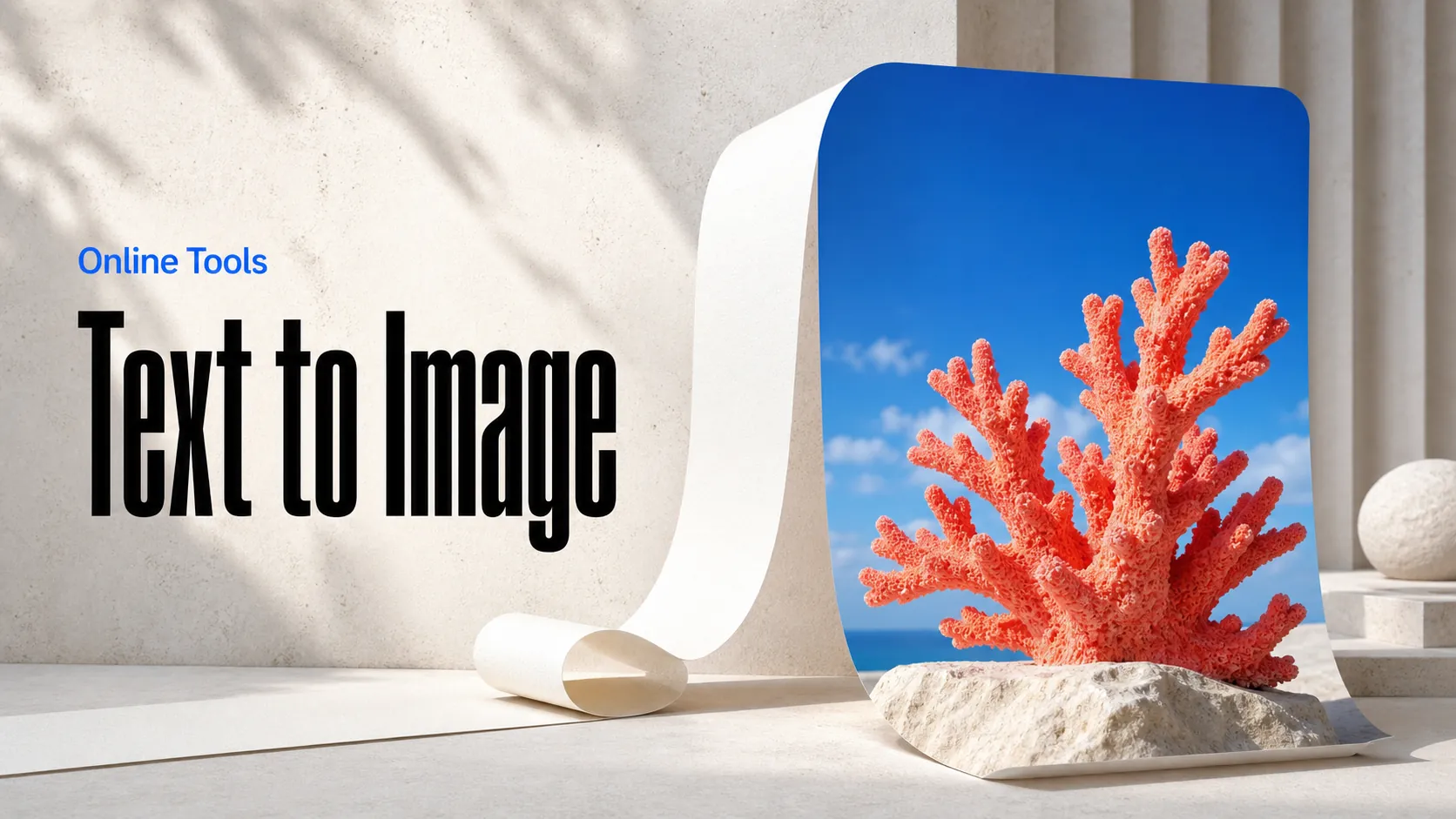
Text to Image
Create AI images from text prompts
Try Google Gemini Omni 1.1 Flash API to edit source footage with natural-language direction while preserving timing for scene and character changes.
Google Gemini Omni 1.1 Flash Video Edit API brings natural-language video refinement into a developer-friendly workflow. Upload an existing video, describe the change you want to make, and use the Gemini video API to create a revised version while keeping the original clip as the creative starting point. Available on Best Image AI, it helps teams explore targeted visual changes without rebuilding an edit from scratch.
Prompt-Directed Video Refinement: Use natural-language instructions to guide changes to the look, action, atmosphere, or creative treatment of an existing clip.
Source-Aware Editing Workflow: Begin with uploaded footage so the revision is grounded in the timing, subjects, and visual context of the source material.
Contextual Change Direction: Describe the elements to adjust and the elements to retain, helping teams express edits as creative intent rather than manual timeline operations.
Cinematic Visual Adjustment: Explore new lighting, mood, scene treatment, and camera-feel directions from a single video input.
Flexible Output Quality: Choose an output quality level that fits internal review, rapid iteration, or final delivery requirements.
Efficient Iteration for Video Teams: Generate focused alternatives for a compact source clip, making the API practical for experimentation and production support.
Input: An existing video clip plus a natural-language instruction describing the desired edit.
Output: A revised video generated through the Gemini Omni 1.1 Flash video-editing API workflow.
Edit Direction: Explain the intended visual change, such as a new environment, altered visual tone, subject action, or scene treatment.
Quality Control: Select an output quality appropriate to the review or delivery stage of the workflow.
Capabilities: Prompt-based video editing, source-aware refinement, scene treatment changes, visual restyling, and rapid creative alternatives.
Campaign Localization: Create new creative treatments for an existing campaign clip while preserving the underlying production starting point.
Social Video Variations: Produce alternate looks, moods, and scene directions for short-form video tailored to different channels or audiences.
Creative Post-Production Support: Explore a visual adjustment before committing time to a full manual edit or reshoot.
Product Video Refreshes: Update the presentation of existing product footage for new seasonal, editorial, or campaign directions.
Automated Revision Workflows: Add instruction-driven video refinement to internal creative tools, approval systems, and content operations.
Note The source video is the basis of the edit. Use a clear instruction that names the intended change and the visual qualities that should remain consistent for the most reliable results.
Gemini Omni 1.1 Flash vs. Google Veo Video Editing: Google Veo supports advanced generated-video workflows. Gemini Omni 1.1 Flash provides a concise natural-language editing route alongside text-to-video, image-to-video, and reference-led generation in the same family.
Gemini Omni 1.1 Flash vs. Runway Video Editing: Runway offers a broad set of visual editing tools. Gemini Omni 1.1 Flash emphasizes an API-first workflow where the source clip and a text instruction provide the basis for a new edit.
Gemini Omni 1.1 Flash vs. Adobe Firefly Video: Adobe Firefly Video is closely connected to established creative-software workflows. Gemini Omni 1.1 Flash gives developers a programmatic option for describing and generating focused video revisions.
Gemini Omni 1.1 Flash vs. Kling Video Editing: Kling provides generative video tools for stylized creation. Gemini Omni 1.1 Flash is useful when teams need source-aware editing through a direct API integration.
Gemini Omni 1.1 Flash vs. Pika: Pika offers accessible creation and effects-oriented experimentation. Gemini Omni 1.1 Flash is geared toward instruction-driven video refinement that can be incorporated into a connected product workflow.
Explore several AI creation tools for quick image and video workflows in your browser, then scale successful ideas with Best Image AI's production-ready model APIs. Best Image AI provides a unified API layer for all models, making it easy to use and scale your workflows.
Create AI images from text prompts
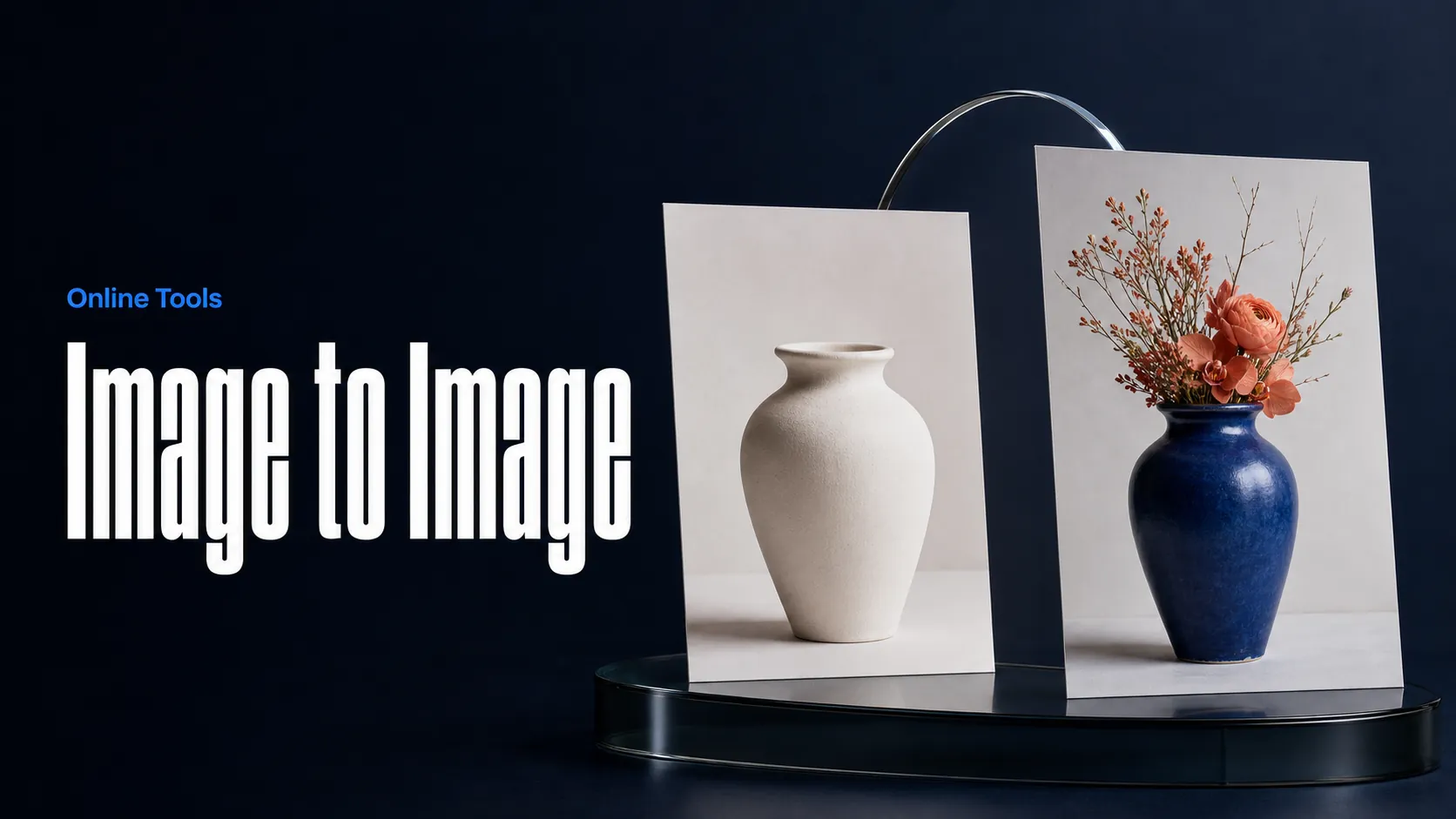
Create AI images from images and text prompts
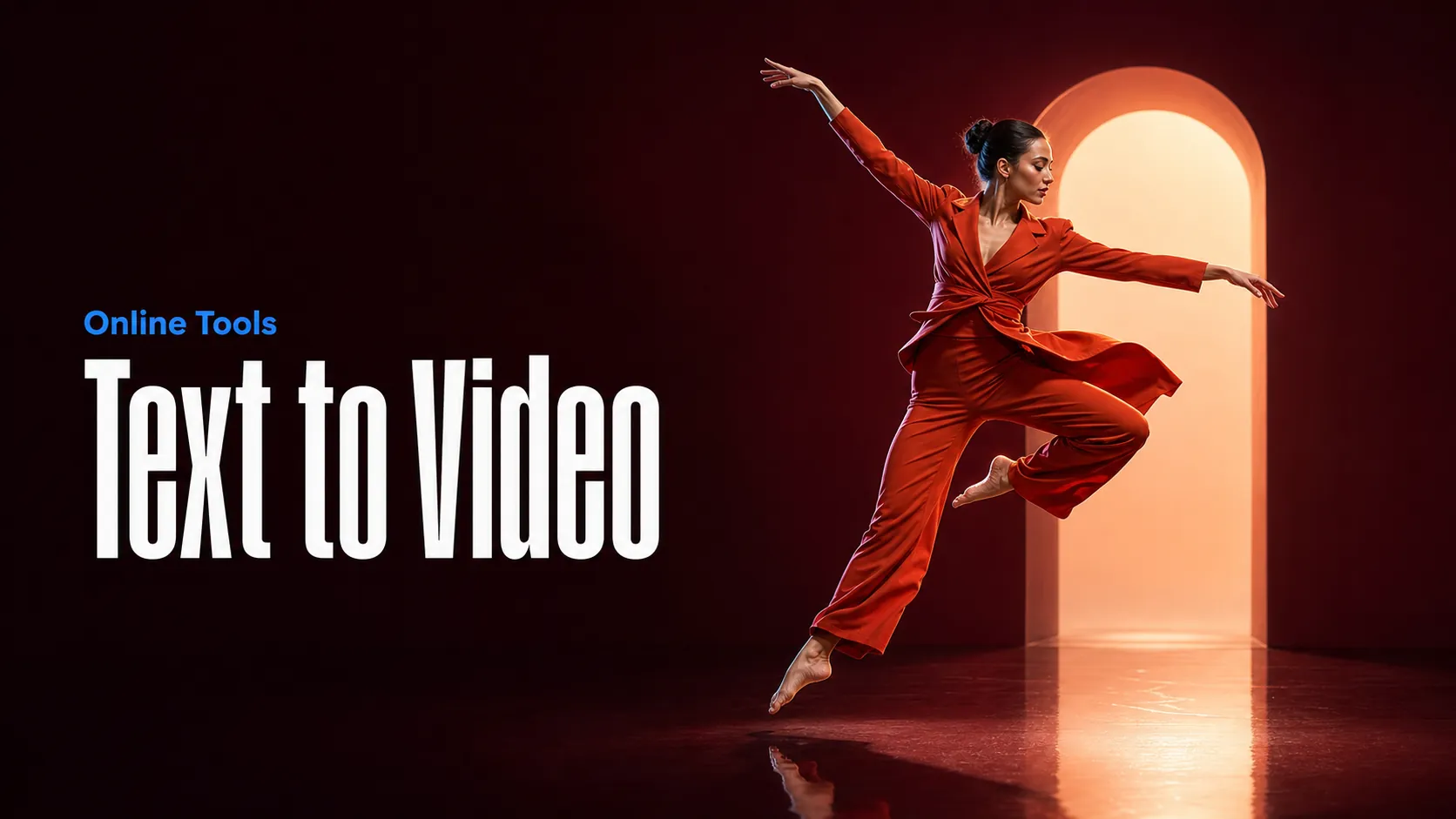
Create AI videos from text prompts
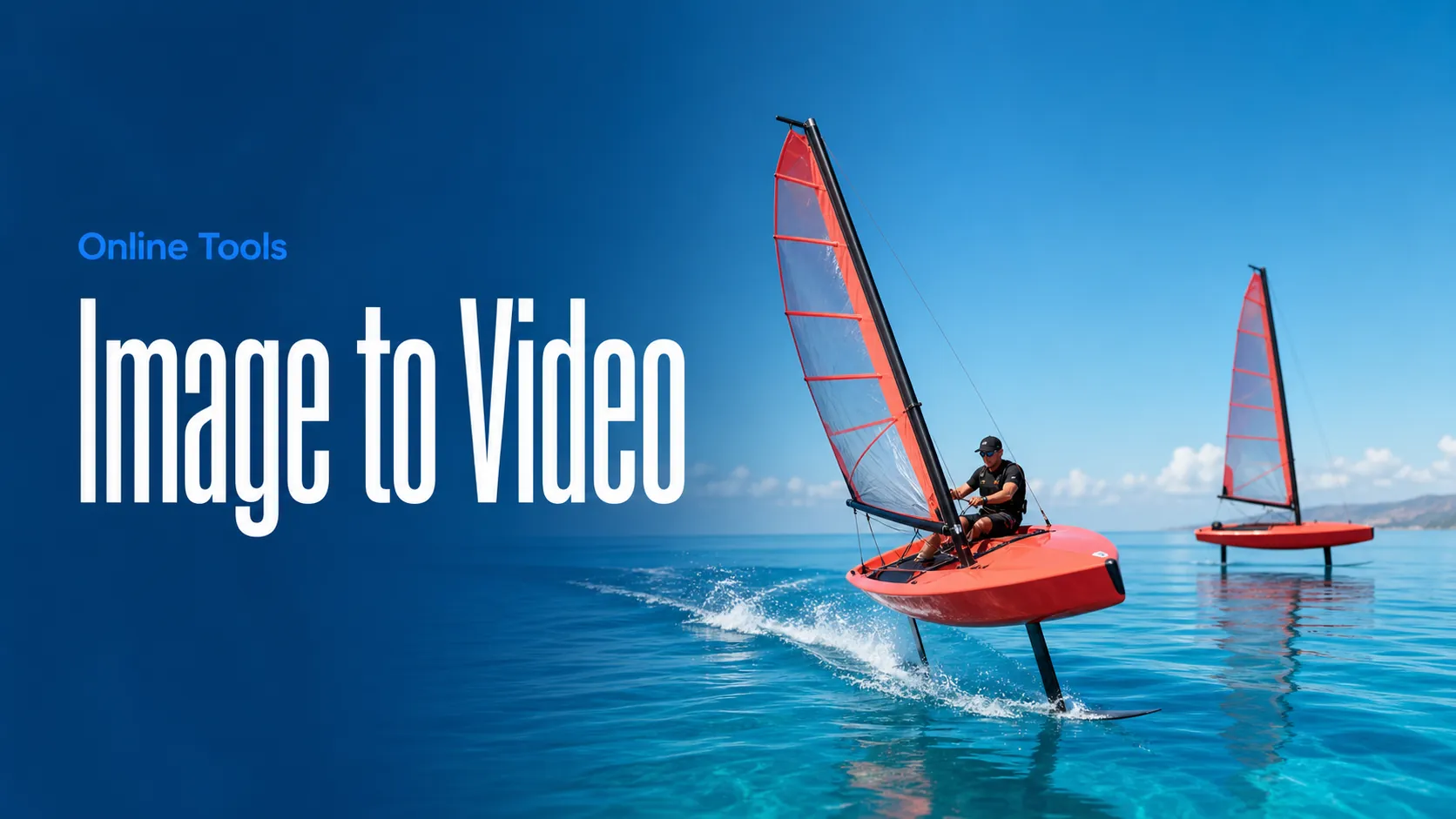
Animate images into AI videos
Create AI images and videos in one unified workspace
Create consistent videos from reference media
Build visual AI image and video workflows on an infinite canvas
const response = await fetch('https://api.flaq.ai/api/v1/video/task', {
  method: 'POST',
  headers: {
    'Content-Type': 'application/json',
    'Authorization': 'Bearer YOUR_API_KEY'
  },
  body: JSON.stringify({
    model_name: 'gemini-omni-1.1-flash-video-edit',
    prompt: 'A small ball rolls into the scene and captures the attention of the cat',
    video_url: 'https://example.com/source-video.mp4',
    resolution: '1080p'
  })
});

const { data } = await response.json();
const taskId = data.task_id;
// Step 2: Poll for results
const taskId = data.task_id;

const pollResult = async (taskId) => {
  const res = await fetch(`https://api.flaq.ai/api/v1/video/${taskId}`, {
    headers: { 'Authorization': 'Bearer YOUR_API_KEY' }
  });
  return res.json();
};

while (true) {
  const pollResultData = await pollResult(taskId);
  const status = pollResultData.data.task_status;

  if (status === 'succeed') {
    console.log(pollResultData.data.task_result.videos[0].url);
    break;
  }

  if (status === 'failed') {
    console.error(pollResultData.data.task_status_msg);
    break;
  }

  await new Promise(resolve => setTimeout(resolve, ));
}
import requests

response = requests.post(
    'https://api.flaq.ai/api/v1/video/task',
    headers={
        'Content-Type': 'application/json',
        'Authorization': 'Bearer YOUR_API_KEY'
    },
    json={
        'model_name': 'gemini-omni-1.1-flash-video-edit',
        'prompt': 'A small ball rolls into the scene and captures the attention of the cat',
        'video_url': 'https://example.com/source-video.mp4',
        'resolution': '1080p'
    }
)

result = response.json()
task_id = result['data']['task_id']
curl -X POST https://api.flaq.ai/api/v1/video/task \
  -H "Content-Type: application/json" \
  -H "Authorization: Bearer YOUR_API_KEY" \
  -d '{
    "model_name": "gemini-omni-1.1-flash-video-edit",
    "prompt": "A small ball rolls into the scene and captures the attention of the cat",
    "video_url": "https://example.com/source-video.mp4",
    "resolution": "1080p"
  }'
# Step 2: Poll for results
# Replace {task_id} with the task_id returned from the submit response
curl -X GET "https://api.flaq.ai/api/v1/video/{task_id}" \
  -H "Authorization: Bearer YOUR_API_KEY"
# Step 2: Poll for results
task_id = response.json()['data']['task_id']
poll_url = f"https://api.flaq.ai/api/v1/video/{task_id}"

while True:
    poll_result = requests.get(poll_url, headers={'Authorization': 'Bearer YOUR_API_KEY'}).json()
    status = poll_result['data']['task_status']
    if status == 'succeed':
        print(poll_result['data']['task_result']['videos'][0]['url'])
        break
    if status == 'failed':
        print(poll_result['data']['task_status_msg'])
        break
    time.sleep(10)