
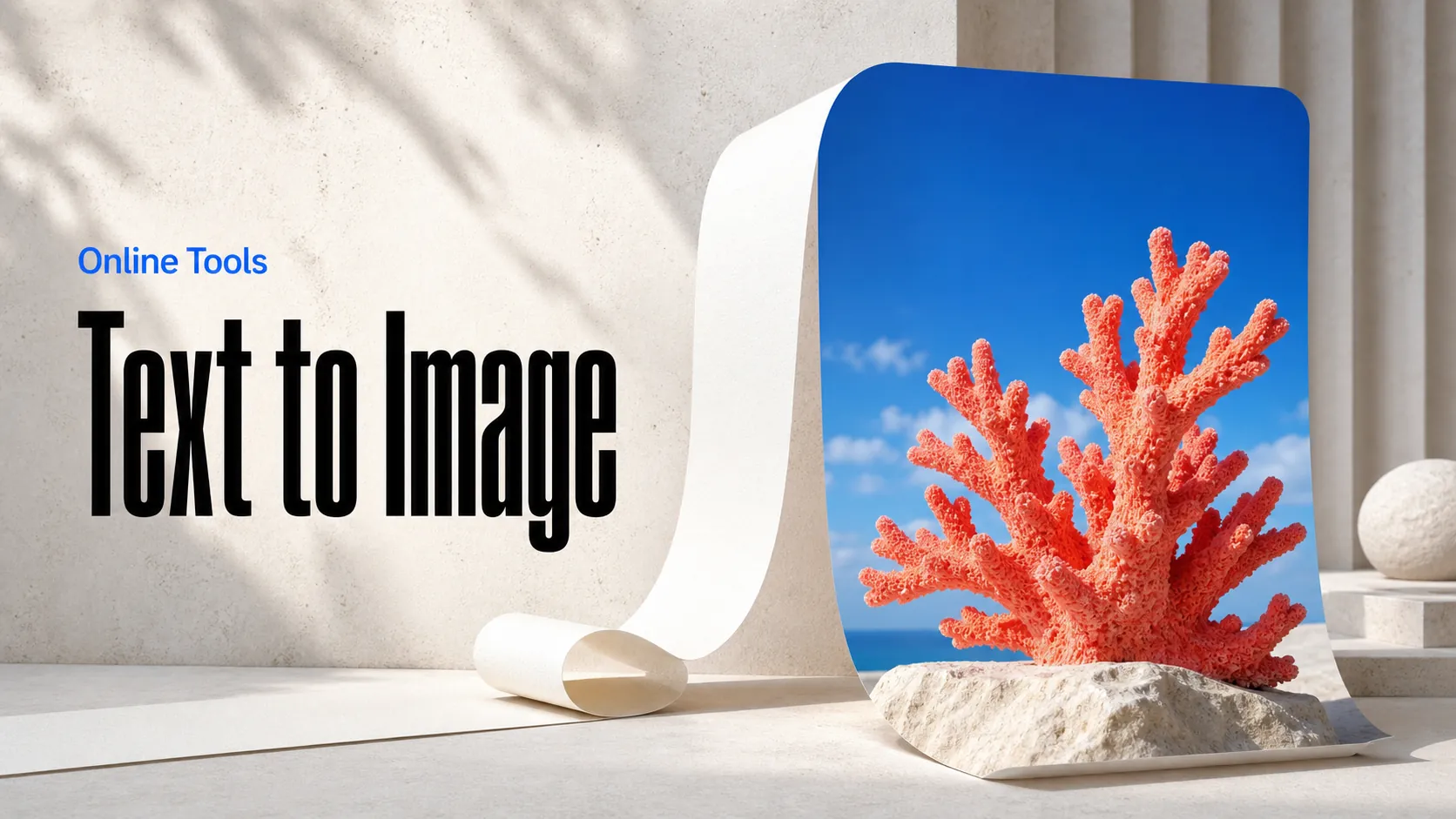
Text to Image
Create AI images from text prompts
Refine product photos and campaign visuals with Google Nano Banana 2.1 Edit API. Combine prompts, reference images, and optional search for precise image edits.
Try the AI Image Generator now
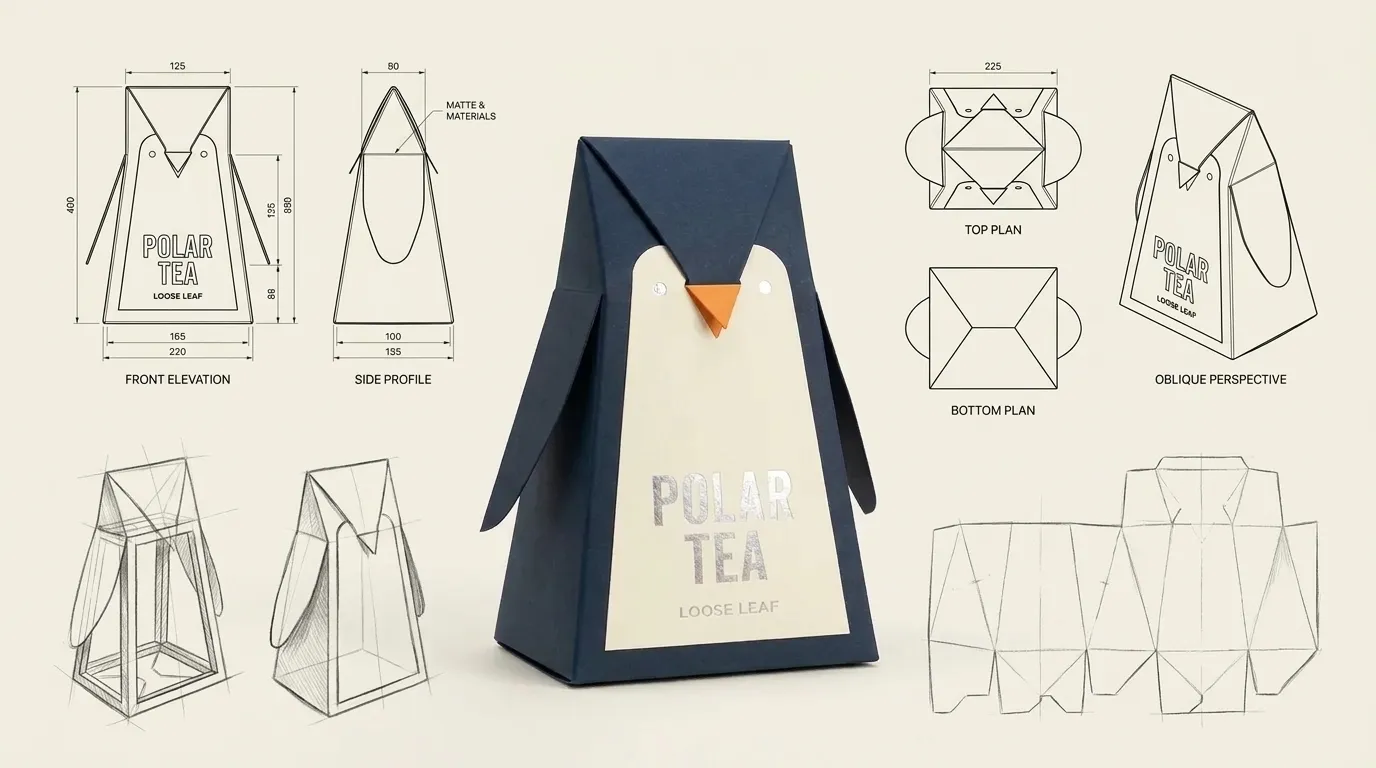
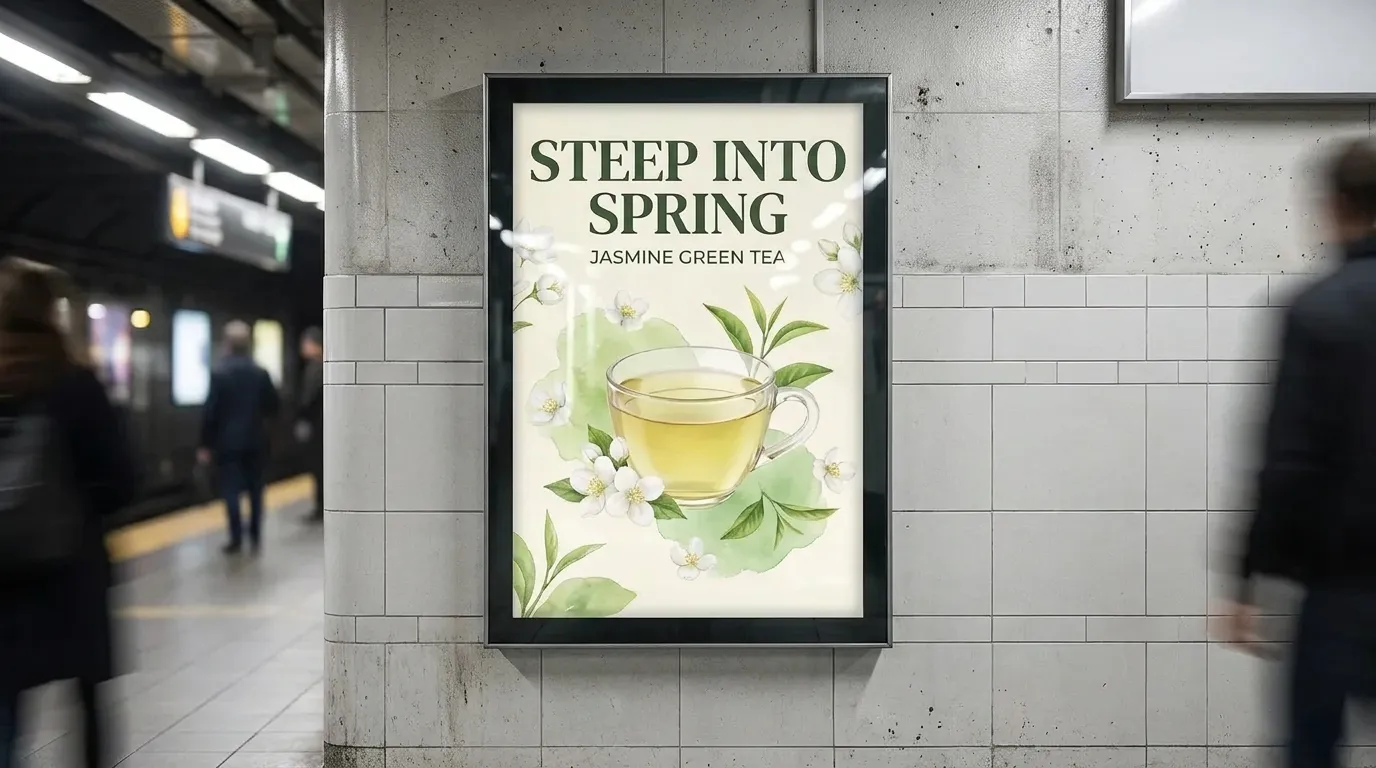
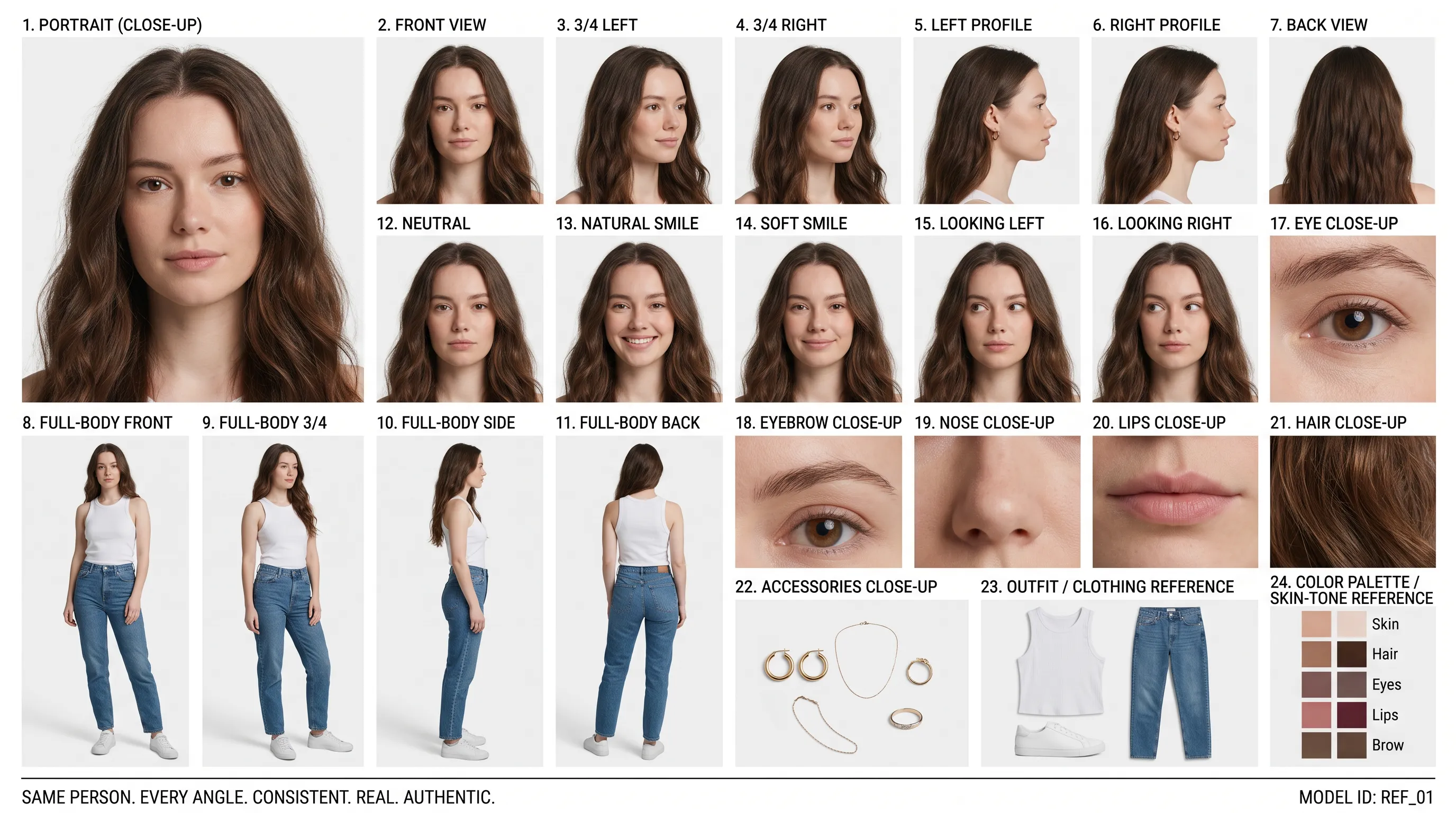
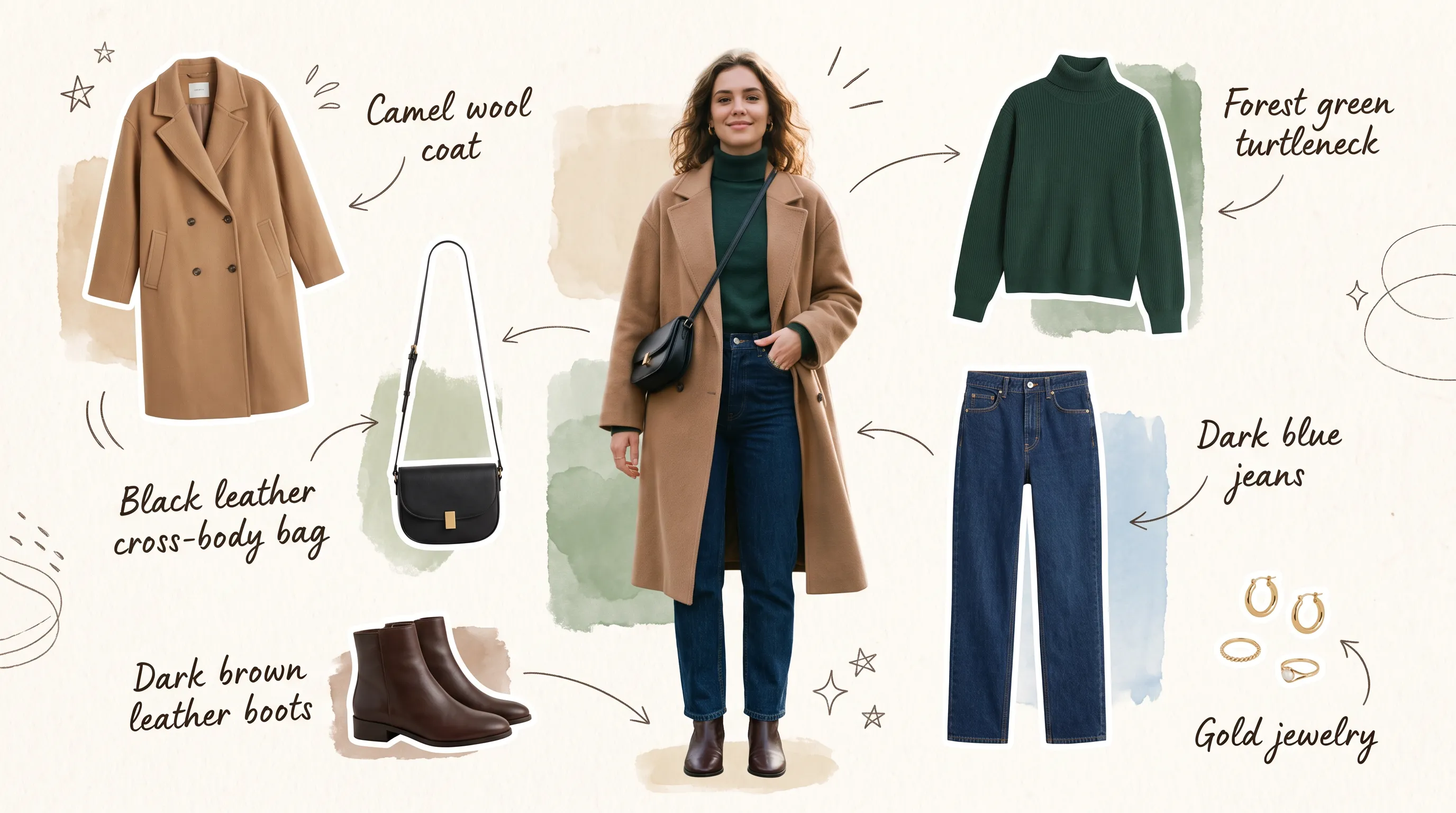
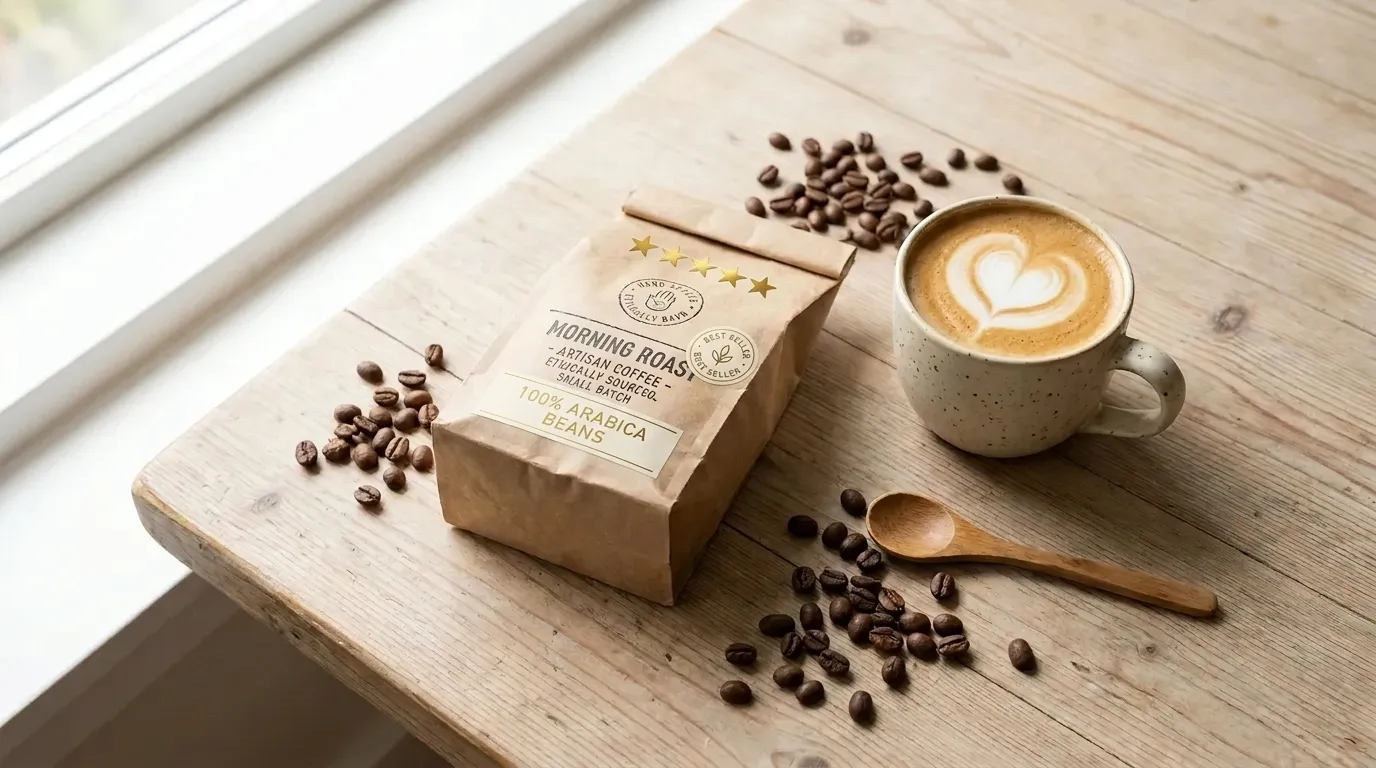
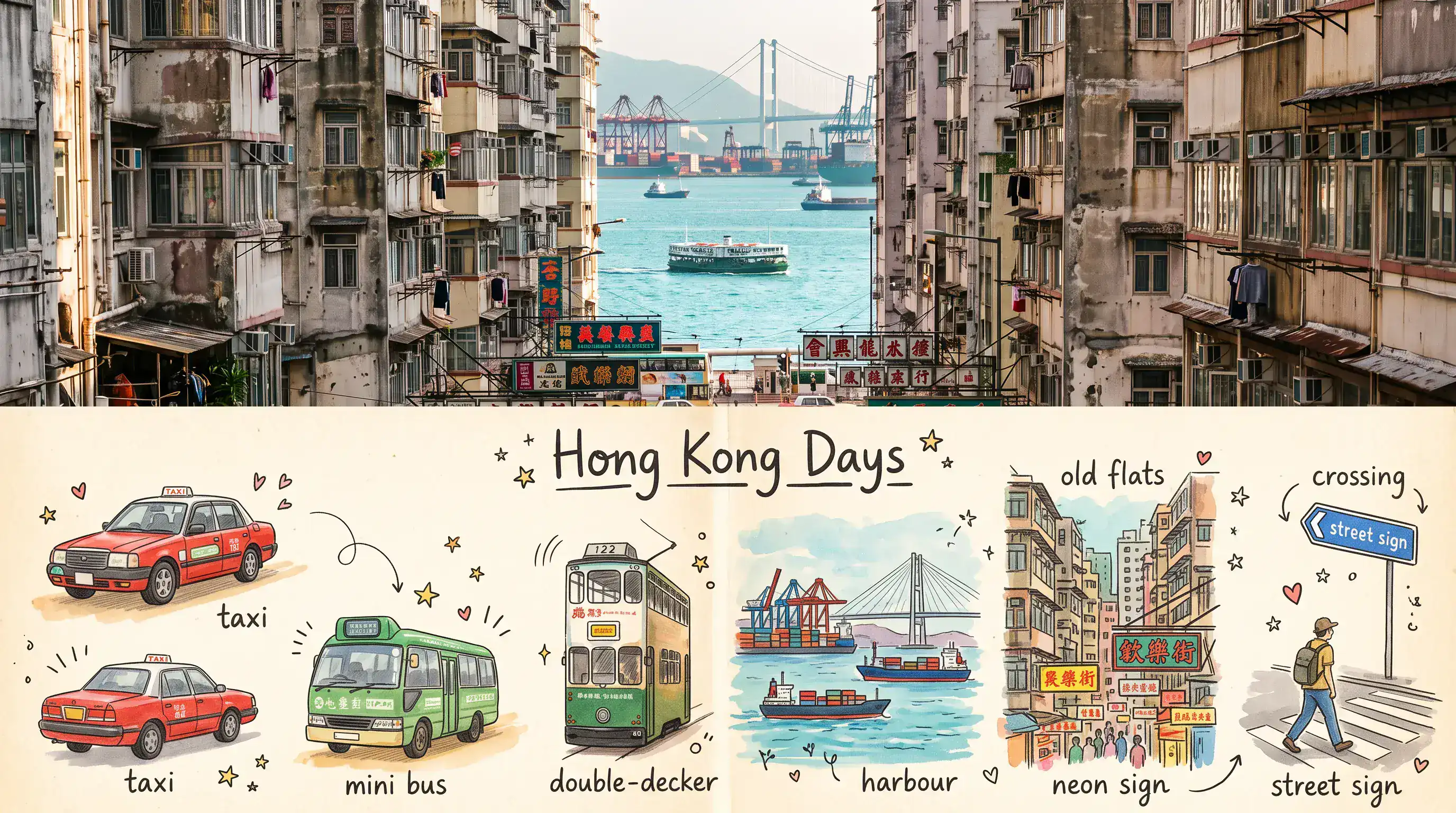
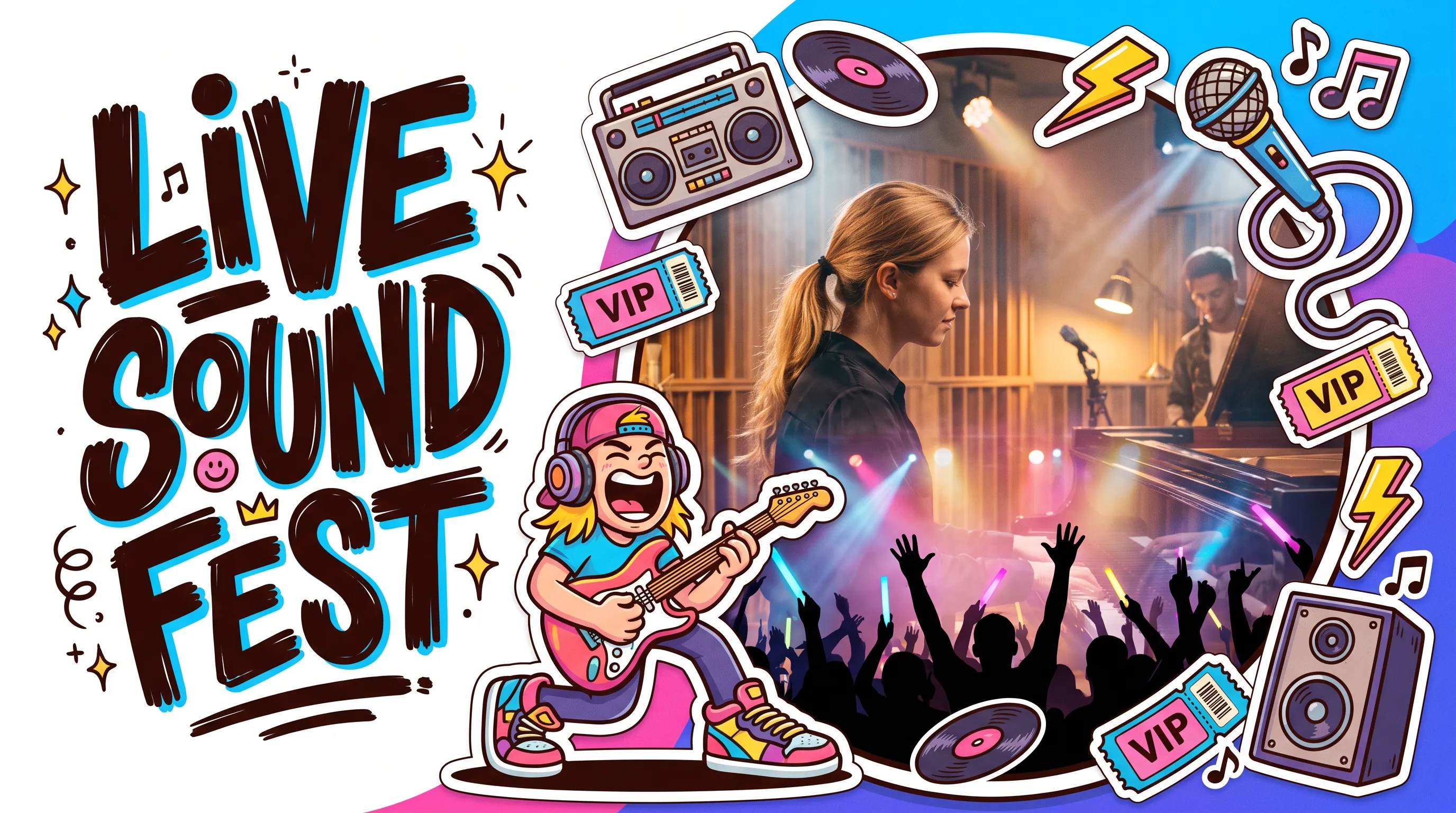
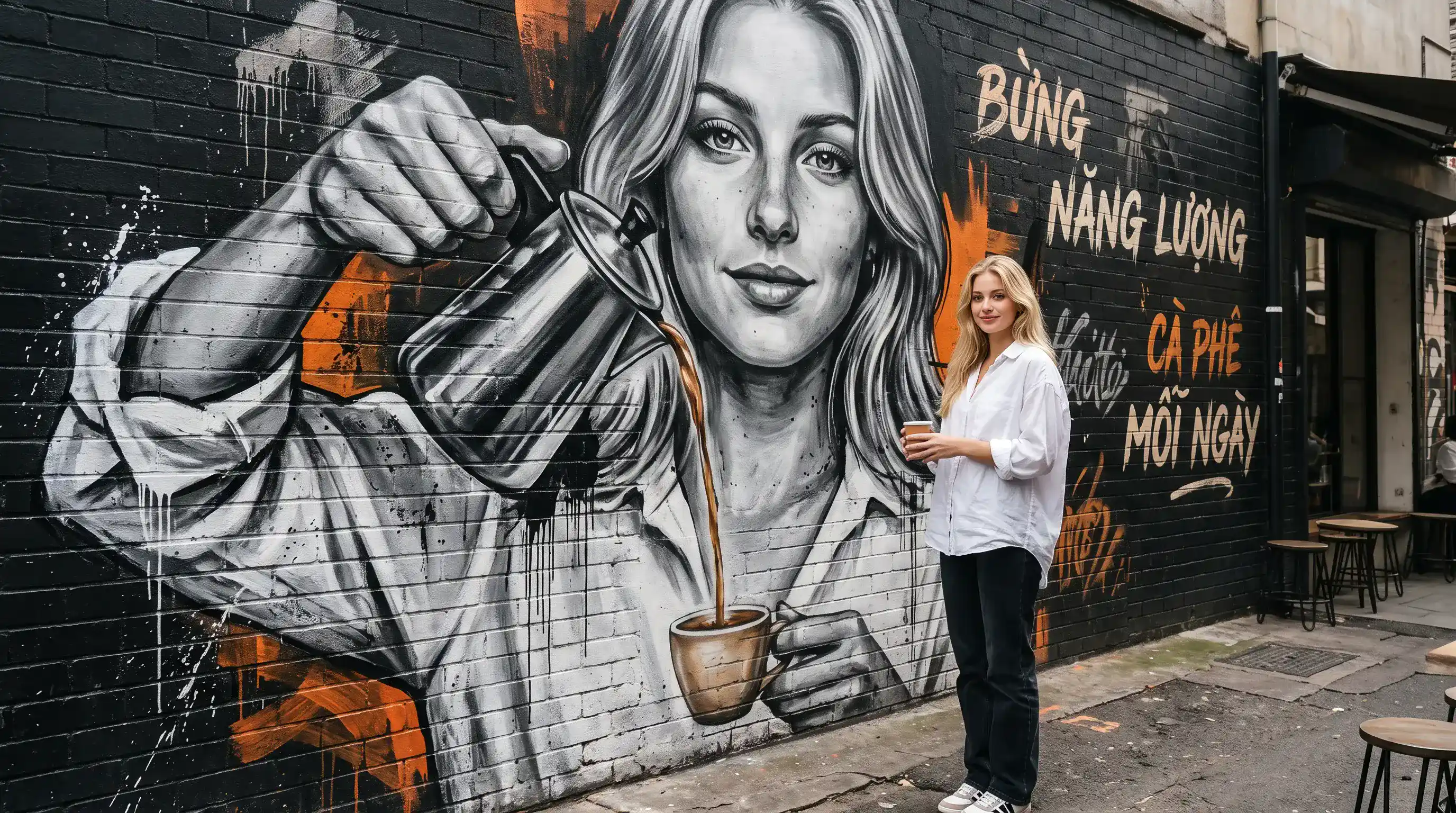
Nano Banana 2.1 Edit API brings Google's high-efficiency image editing model to Best Image AI for developers and creative teams. Transform existing visuals with natural-language instructions, combine multiple reference images, and produce refined outputs with improved detail, text rendering, and visual consistency. Flexible quality and aspect ratio controls help teams adapt source material for a wide range of production needs.
Note: Use images you are authorized to edit and keep prompts within Google's safety guidelines.
Reference images are charged from the first image; each enabled search option adds a fixed charge per generation, independent of image count. See current pricing.
Nano Banana 2.1 Edit vs. Nano Banana 2 Edit: Nano Banana 2 Edit supports prompt-driven editing and multi-image workflows. Nano Banana 2.1 Edit builds on that foundation with stronger visual fidelity, text rendering, and consistency across more involved edits.
Nano Banana 2.1 Edit vs. Nano Banana Pro: Nano Banana Pro targets precision work and complex professional design. Nano Banana 2.1 Edit offers an efficient option for teams that need high-quality edits and repeated asset variations.
Nano Banana 2.1 Edit vs. Nano Banana 2 Lite: Nano Banana 2 Lite focuses on speed and low-cost generation and editing. Nano Banana 2.1 Edit is suited to reference-heavy briefs where composition, typography, and recurring subject details matter more.
Nano Banana 2.1 Edit vs. GPT Image: GPT Image supports image editing through OpenAI's API. Nano Banana 2.1 Edit provides a Google model workflow on Best Image AI with multiple reference images, broad aspect ratio choices, and optional search grounding.
Nano Banana 2.1 Edit vs. FLUX.2: FLUX.2 offers reference-guided image editing and composition. Nano Banana 2.1 Edit combines multi-image guidance with Google's prompt understanding and optional web or image search for context-aware visual updates.
Explore several AI creation tools for quick image and video workflows in your browser, then scale successful ideas with Best Image AI's production-ready model APIs. Best Image AI provides a unified API layer for all models, making it easy to use and scale your workflows.
Create AI images from text prompts
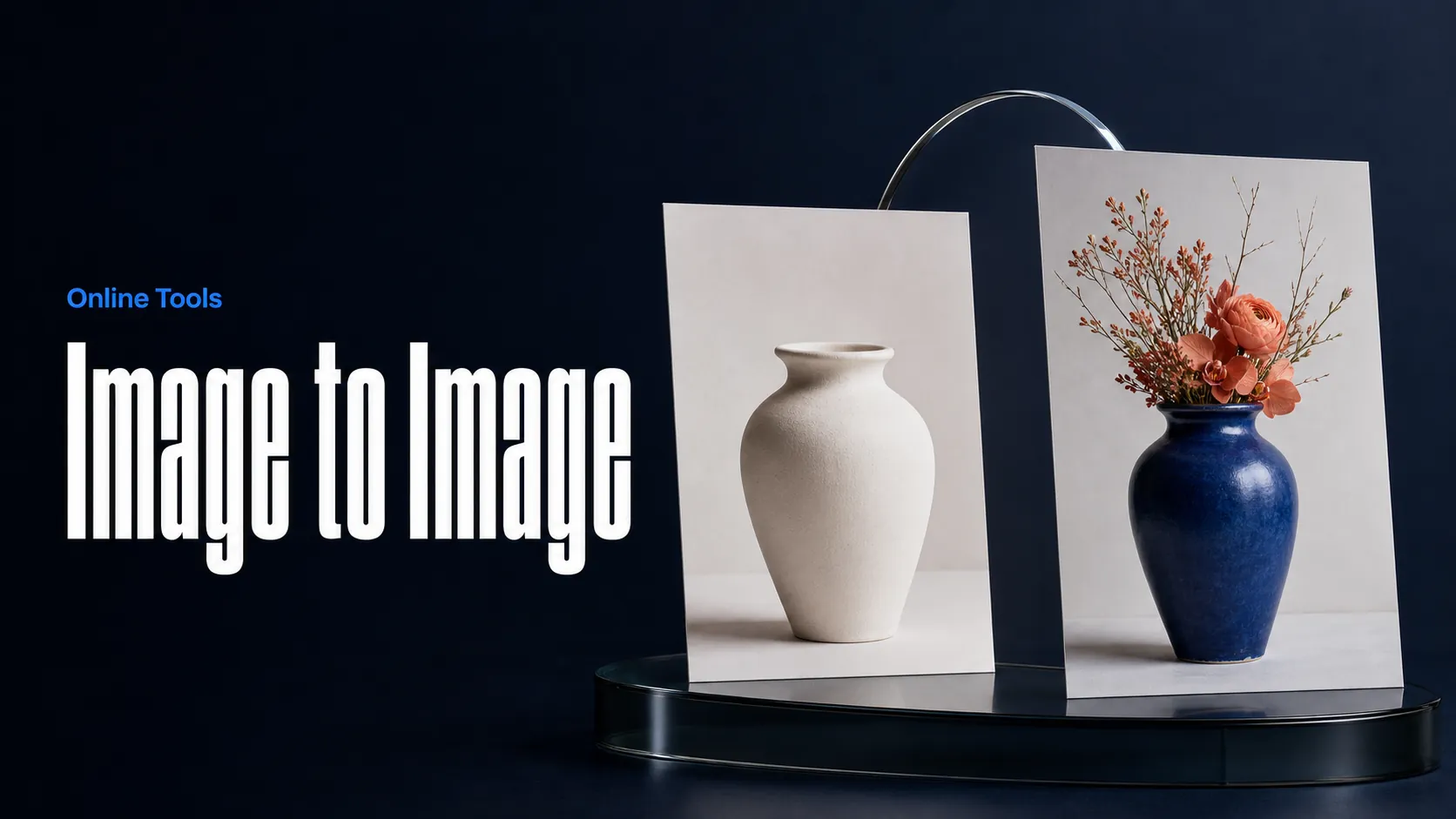
Create AI images from images and text prompts
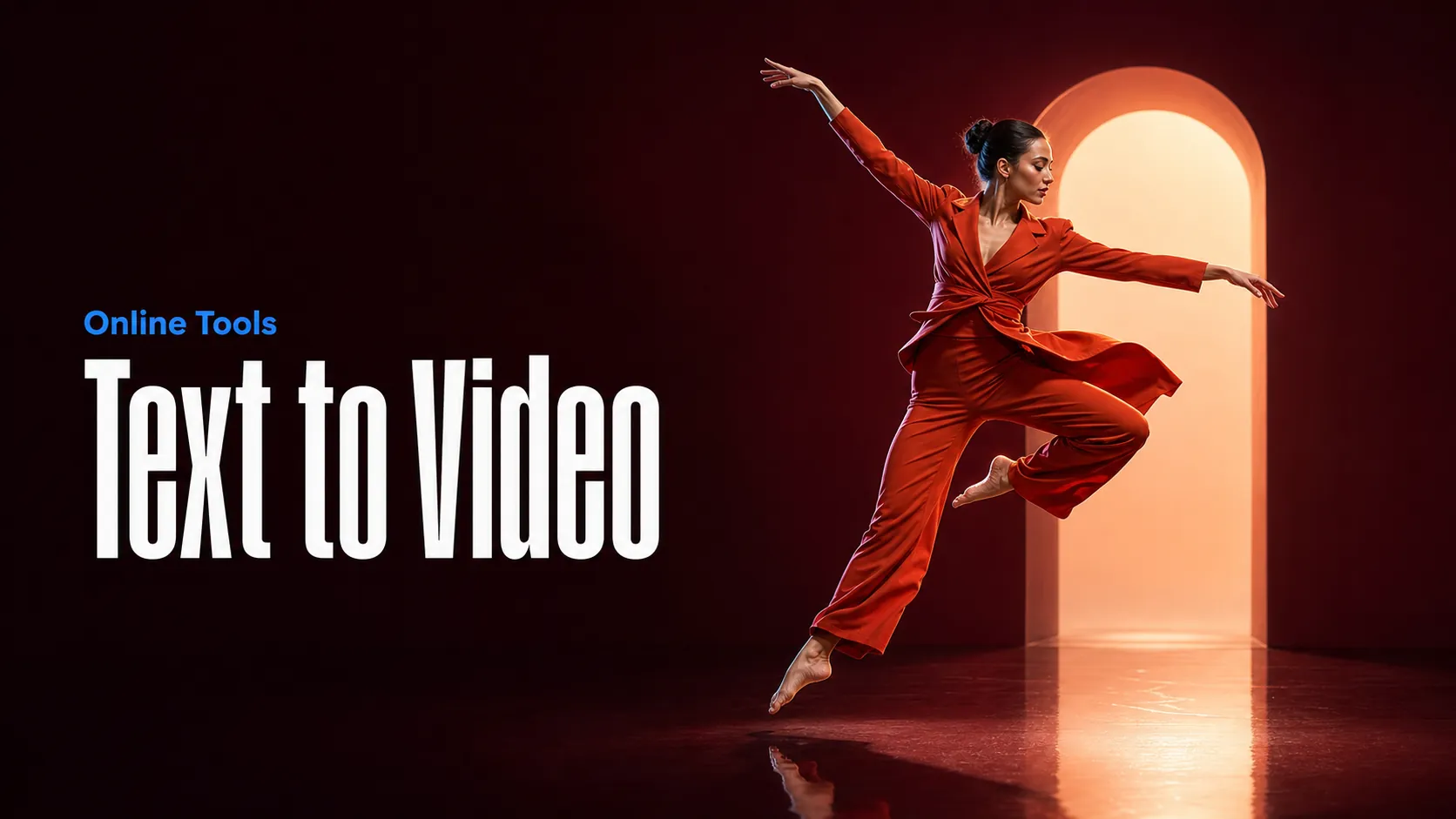
Create AI videos from text prompts
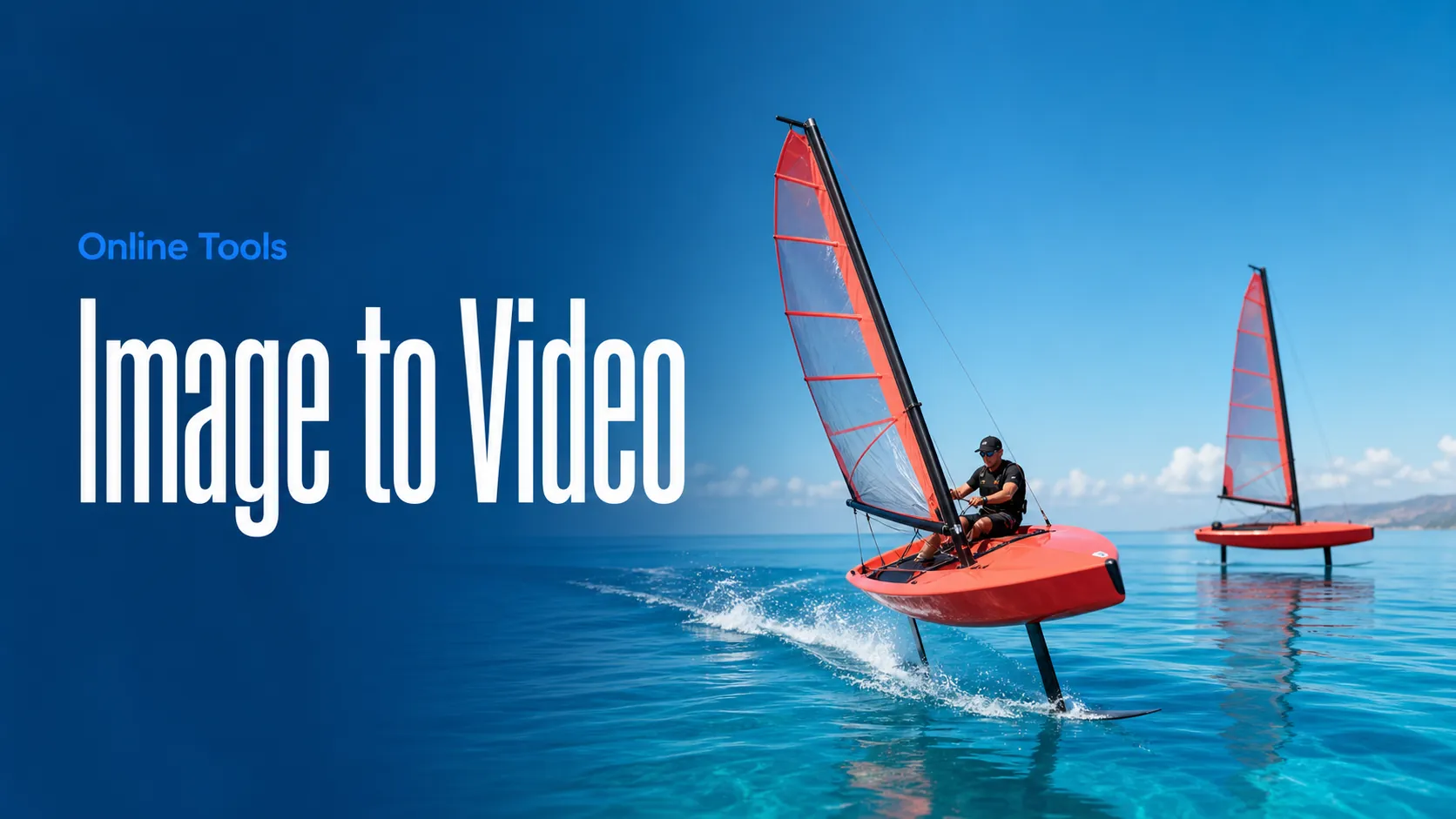
Animate images into AI videos
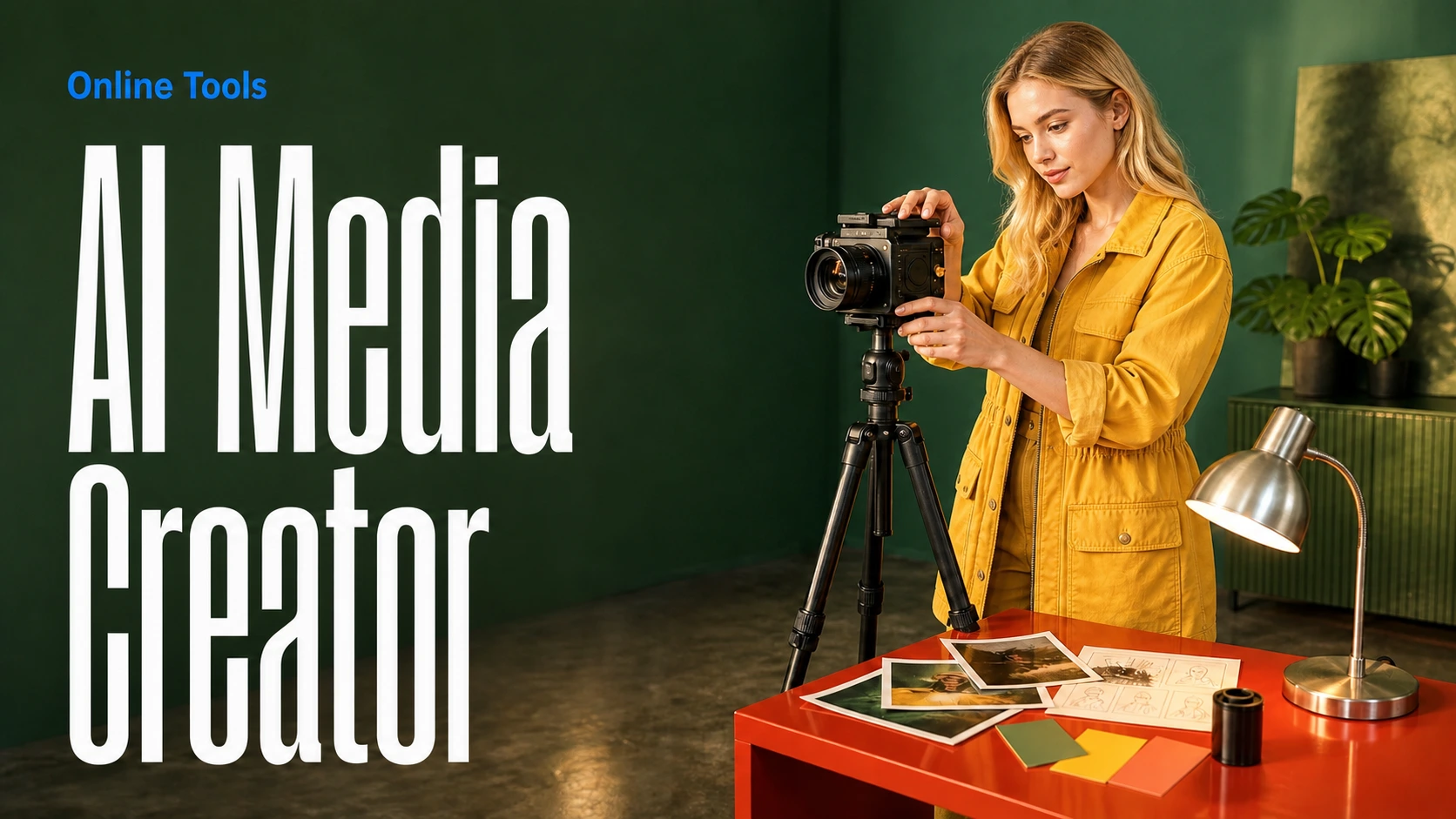
Create AI images and videos in one unified workspace
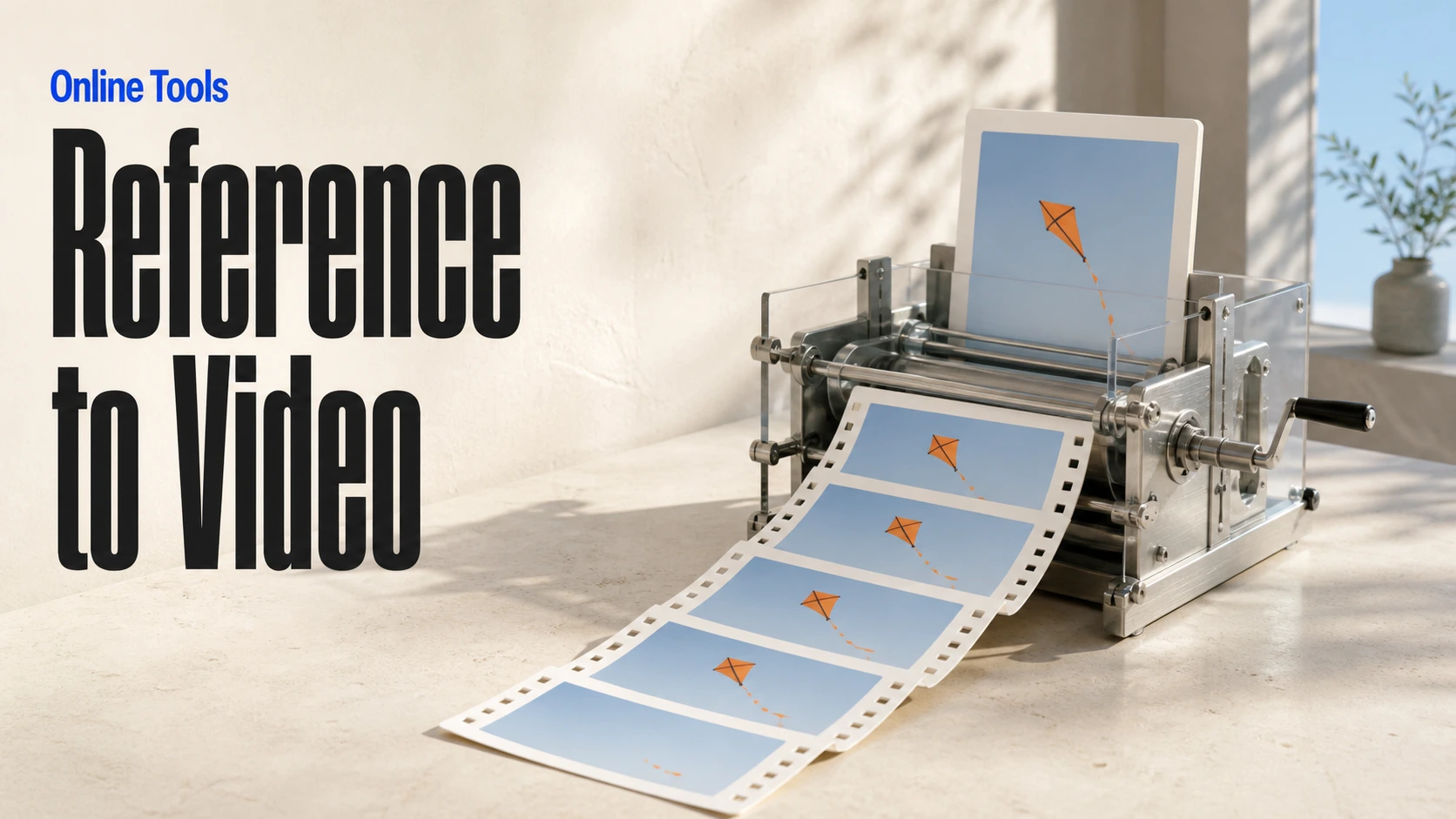
Create consistent videos from reference media
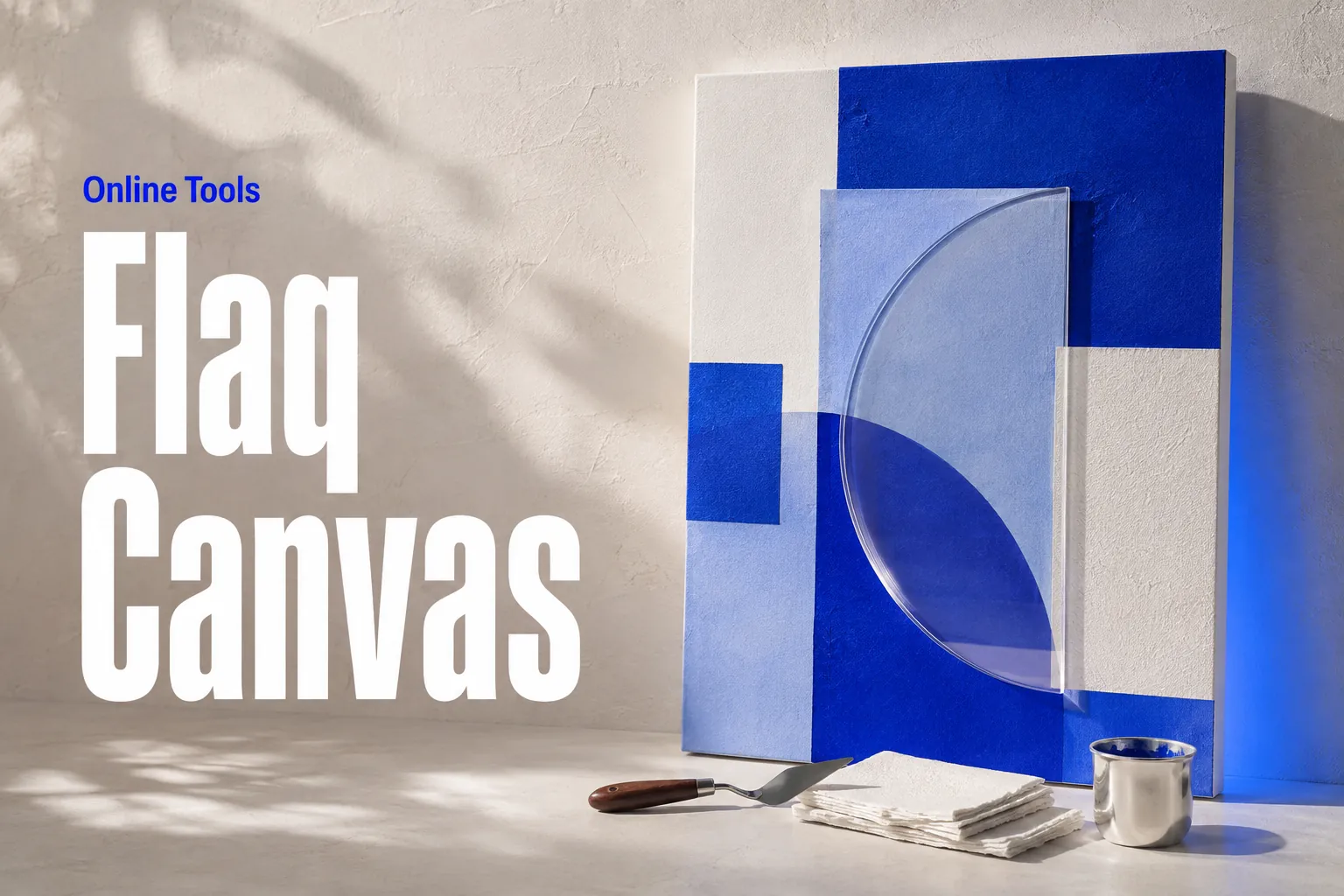
Build visual AI image and video workflows on an infinite canvas
// Step 1: Submit generation request
const response = await fetch('https://api.flaq.ai/api/v1/image/task', {
  method: 'POST',
  headers: {
    'Content-Type': 'application/json',
    'Authorization': 'Bearer YOUR_API_KEY'
  },
  body: JSON.stringify({
    model_name: 'nano-banana-2.1-edit',
    prompt: 'Add flying cars and neon lights to this cityscape',
    image_url_list: ['https://example.com/input-image.jpg'],
    width: 16,
    height: 9,
    resolution: '2k',
    enable_web_search: false,
    enable_image_search: true
  })
});

const { data } = await response.json();
const taskId = data.task_id;
// Step 2: Poll for results
const taskId = data.task_id;

const pollResult = async (taskId) => {
  const res = await fetch(`https://api.flaq.ai/api/v1/image/${taskId}`, {
    headers: { 'Authorization': 'Bearer YOUR_API_KEY' }
  });
  return res.json();
};

while (true) {
  const pollResultData = await pollResult(taskId);
  const status = pollResultData.data.task_status;

  if (status === 'succeed') {
    console.log(pollResultData.data.task_result.images[].);
    ;
  }

   (status === ) {
    .(pollResultData..);
    ;
  }

    ( (resolve, ));
}
# Step 1: Submit generation request
import requests

response = requests.post(
    'https://api.flaq.ai/api/v1/image/task',
    headers={
        'Content-Type': 'application/json',
        'Authorization': 'Bearer YOUR_API_KEY'
    },
    json={
        'model_name': 'nano-banana-2.1-edit',
        'prompt': 'Add flying cars and neon lights to this cityscape',
        'image_url_list': ['https://example.com/input-image.jpg'],
        'width': 16,
        'height': 9,
        'resolution': '2k',
        'enable_web_search': False,
        'enable_image_search': True
    }
)

result = response.json()
task_id = result['data']['task_id']
# Step 1: Submit generation request
curl -X POST https://api.flaq.ai/api/v1/image/task \
  -H "Content-Type: application/json" \
  -H "Authorization: Bearer YOUR_API_KEY" \
  -d '{
    "model_name": "nano-banana-2.1-edit",
    "prompt": "Add flying cars and neon lights to this cityscape",
    "image_url_list": ["https://example.com/input-image.jpg"],
    "width": 16,
    "height": 9,
    "resolution": "2k",
    "enable_web_search": false,
    "enable_image_search": true
  }'
# Step 2: Poll for results
# Replace {task_id} with the task_id returned from the submit response
curl -X GET "https://api.flaq.ai/api/v1/image/{task_id}" \
  -H "Authorization: Bearer YOUR_API_KEY"
# Step 2: Poll for results
task_id = response.json()['data']['task_id']
poll_url = f"https://api.flaq.ai/api/v1/image/{task_id}"

while True:
    poll_result = requests.get(poll_url, headers={'Authorization': 'Bearer YOUR_API_KEY'}).json()
    status = poll_result['data']['task_status']
    if status == 'succeed':
        print(poll_result['data']['task_result']['images'][0]['url'])
        break
    if status == 'failed':
        print(poll_result['data']['task_status_msg'])
        break
    time.sleep(10)