

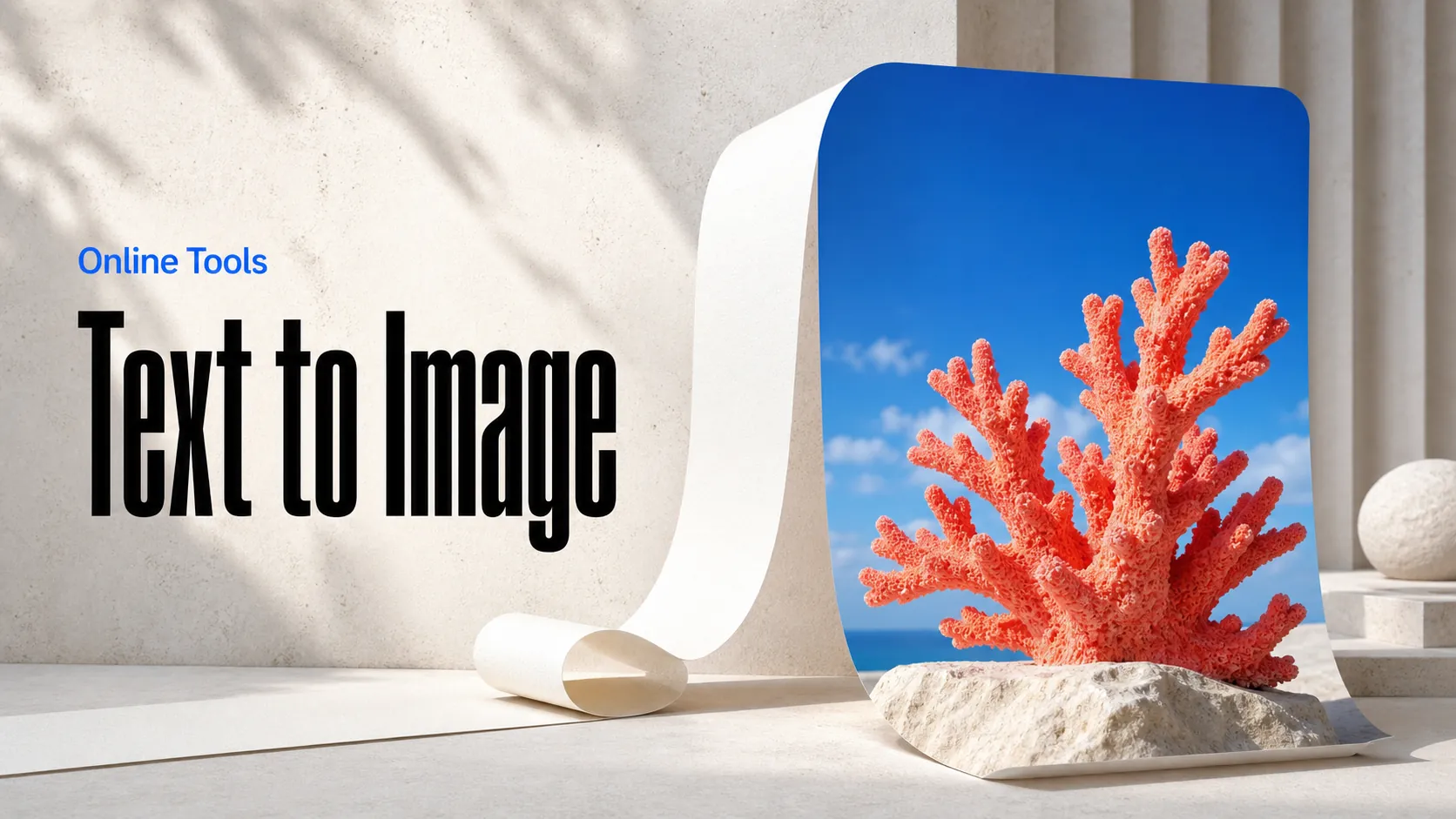
Text to Image
Create AI images from text prompts
Try Google Gemini Omni 1.1 Flash API to guide video generation with images and short video references for consistent subjects, scenes, and motion.
Google Gemini Omni 1.1 Flash Reference-to-Video API lets developers use visual materials as creative guidance for generated video. Supply reference images, video clips, or both, then describe the result you want to create. The Gemini video API helps turn those inputs into a new moving scene, giving creative teams a flexible way to shape composition, subject cues, atmosphere, and direction on Best Image AI.
Multimodal Reference Guidance: Use images, video clips, or a combination of both as visual materials for a new generated sequence.
Prompt-Controlled Creative Direction: Pair the references with natural-language guidance for subject action, setting, camera behavior, lighting, and mood.
Rich Visual Context: Bring together visual cues from multiple supplied materials when a single prompt is not enough to communicate the intended direction.
Reference-Led Scene Creation: Use the selected assets as a creative starting point for motion, composition, and atmospheric development in the output.
Flexible Video Presentation: Choose a horizontal or vertical format, output quality, and compact clip length for the planned viewing context.
Scalable API Workflow: Incorporate reference-guided video generation into asset libraries, creative tools, campaign systems, and production pipelines.
Input: Optional reference images, optional reference video clips, and a natural-language prompt that describes the intended generated scene.
Output: A new video clip created through the Gemini Omni 1.1 Flash reference-to-video API workflow.
Reference Direction: Select visual materials that communicate the desired subjects, setting, composition, or creative tone, then add clear motion instructions.
Format Control: Choose the output orientation, quality level, and concise duration that suit the final use case.
Capabilities: Reference-guided video generation, multimodal creative input, prompt-directed motion, visual-context assembly, and cinematic scene creation.
Campaign Concept Development: Combine approved key visuals, mood imagery, and motion references to explore new campaign video directions.
Brand Creative Systems: Use a curated visual library as guidance for generating video concepts that begin from a defined creative language.
Storyboard and Pitch Visualization: Turn reference boards and selected clip materials into concise proof-of-concept motion scenes.
Content Adaptation: Create new video directions from existing visual assets when a text prompt alone would not convey enough creative context.
Creative Operations at Scale: Build reference-aware generation into asset-management tools, content pipelines, and internal creation platforms.
Note References provide creative guidance rather than a replacement for a precise prompt. For best results, explain the desired action, camera movement, and scene outcome in addition to supplying visual materials.
Gemini Omni 1.1 Flash vs. Google Veo Reference Video Workflows: Google Veo provides a range of generated-video capabilities. Gemini Omni 1.1 Flash offers a reference-led creation route that sits alongside text generation, image animation, and video editing in the same model family.
Gemini Omni 1.1 Flash vs. Runway: Runway gives creators many ways to work with source material and generative tools. Gemini Omni 1.1 Flash is suited to developers building a reference-guided video workflow through an API.
Gemini Omni 1.1 Flash vs. Kling AI: Kling supports visually driven AI video creation. Gemini Omni 1.1 Flash provides flexible image and video reference inputs with prompt-led direction for teams that need an integrated generation flow.
Gemini Omni 1.1 Flash vs. Pika: Pika is popular for approachable visual experimentation. Gemini Omni 1.1 Flash is a practical option when creative references need to be part of a structured, programmatic video workflow.
Gemini Omni 1.1 Flash vs. Luma Dream Machine: Luma Dream Machine supports rapid concept exploration from prompts. Gemini Omni 1.1 Flash adds multimodal reference guidance for teams that want to carry more visual context into each generated clip.
Explore several AI creation tools for quick image and video workflows in your browser, then scale successful ideas with Best Image AI's production-ready model APIs. Best Image AI provides a unified API layer for all models, making it easy to use and scale your workflows.
Create AI images from text prompts
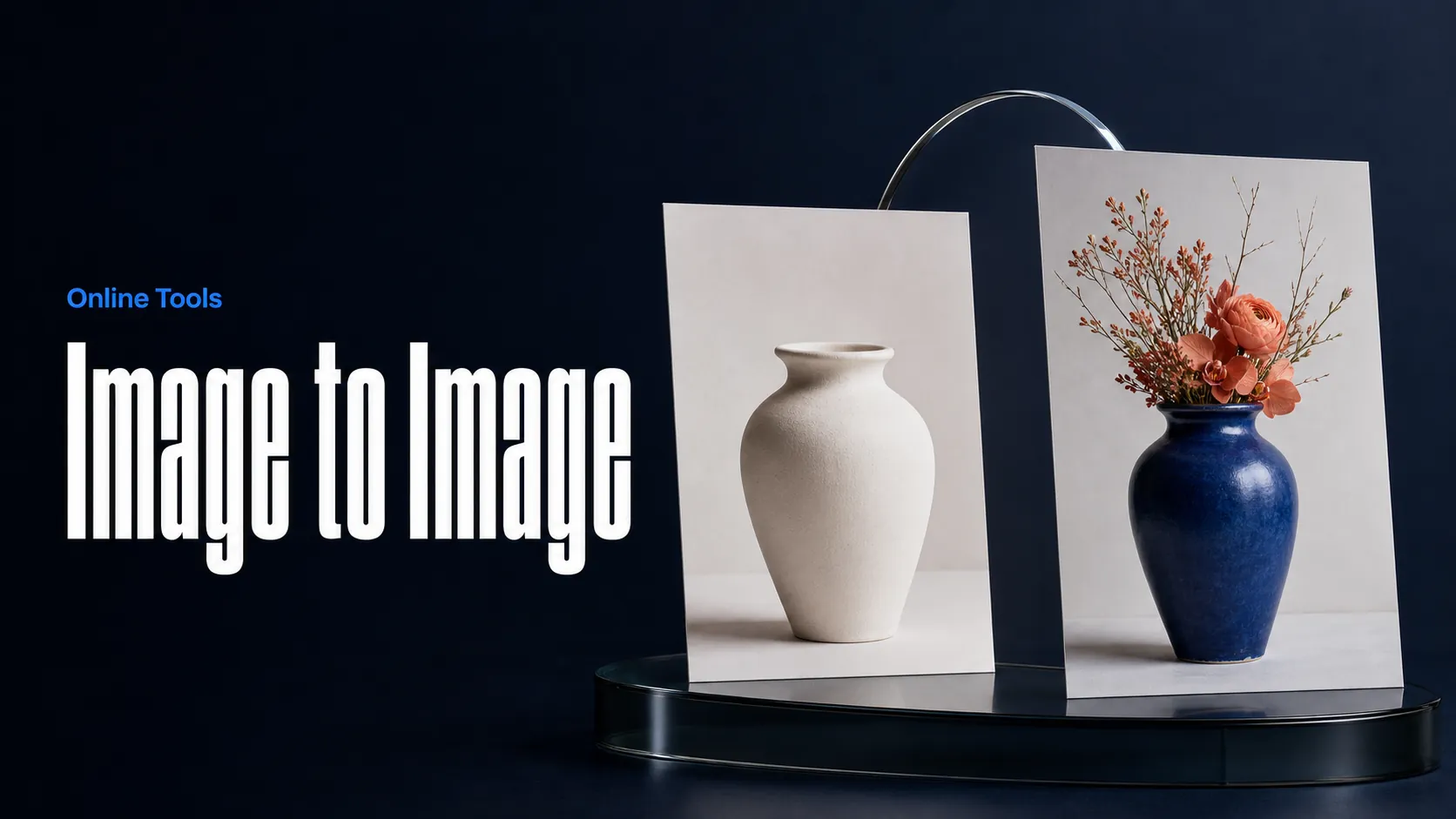
Create AI images from images and text prompts
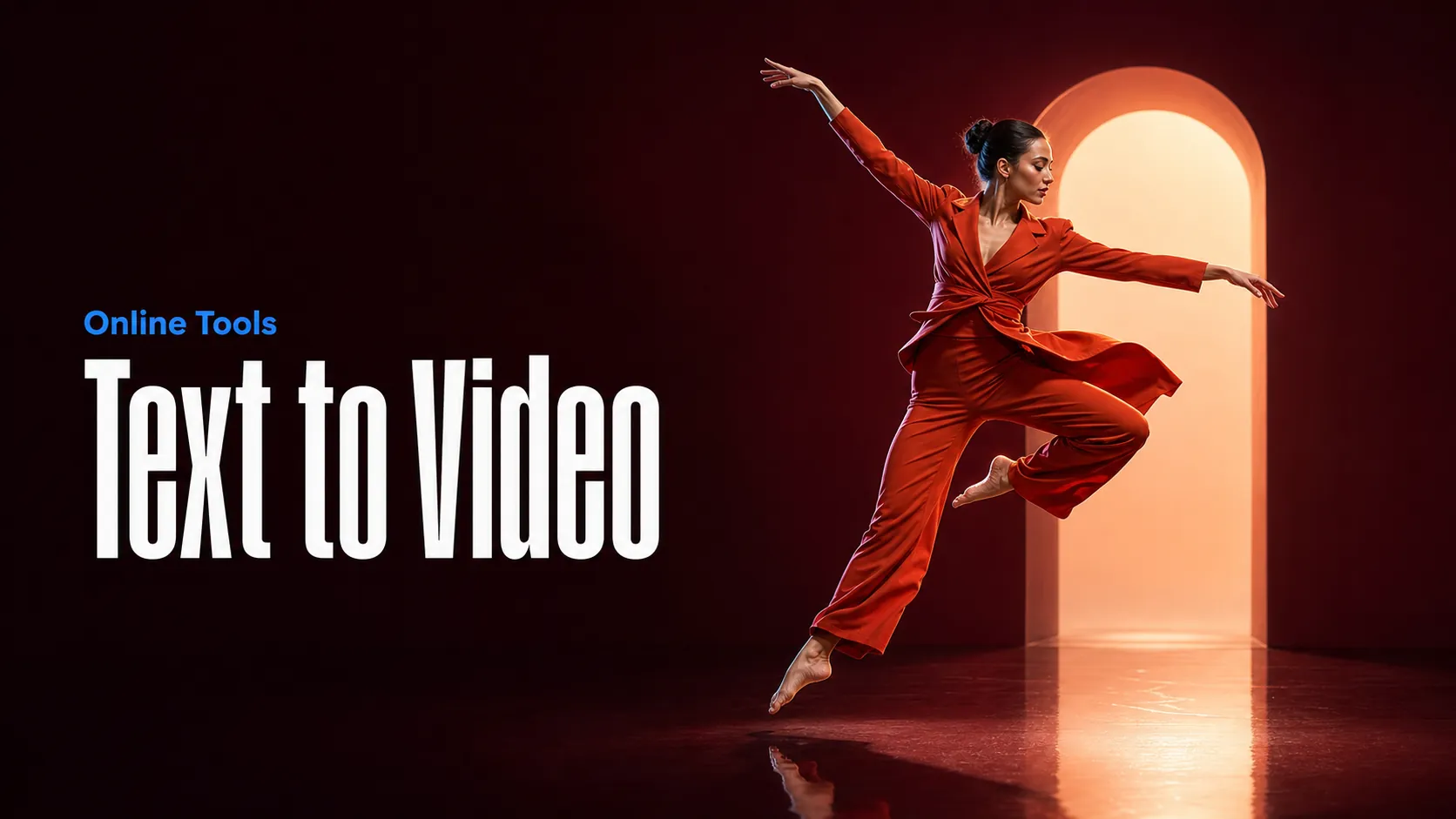
Create AI videos from text prompts
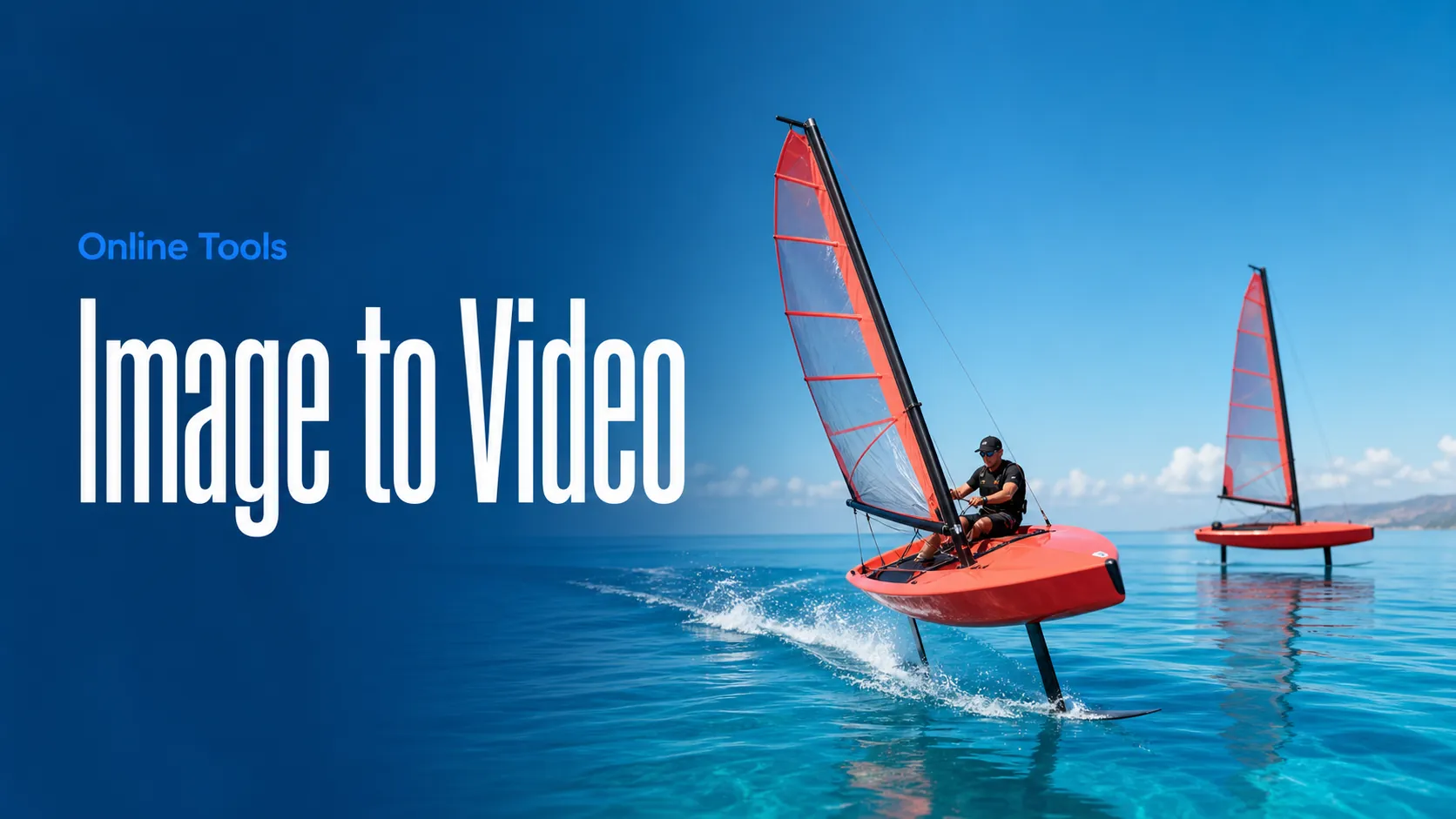
Animate images into AI videos
Create AI images and videos in one unified workspace
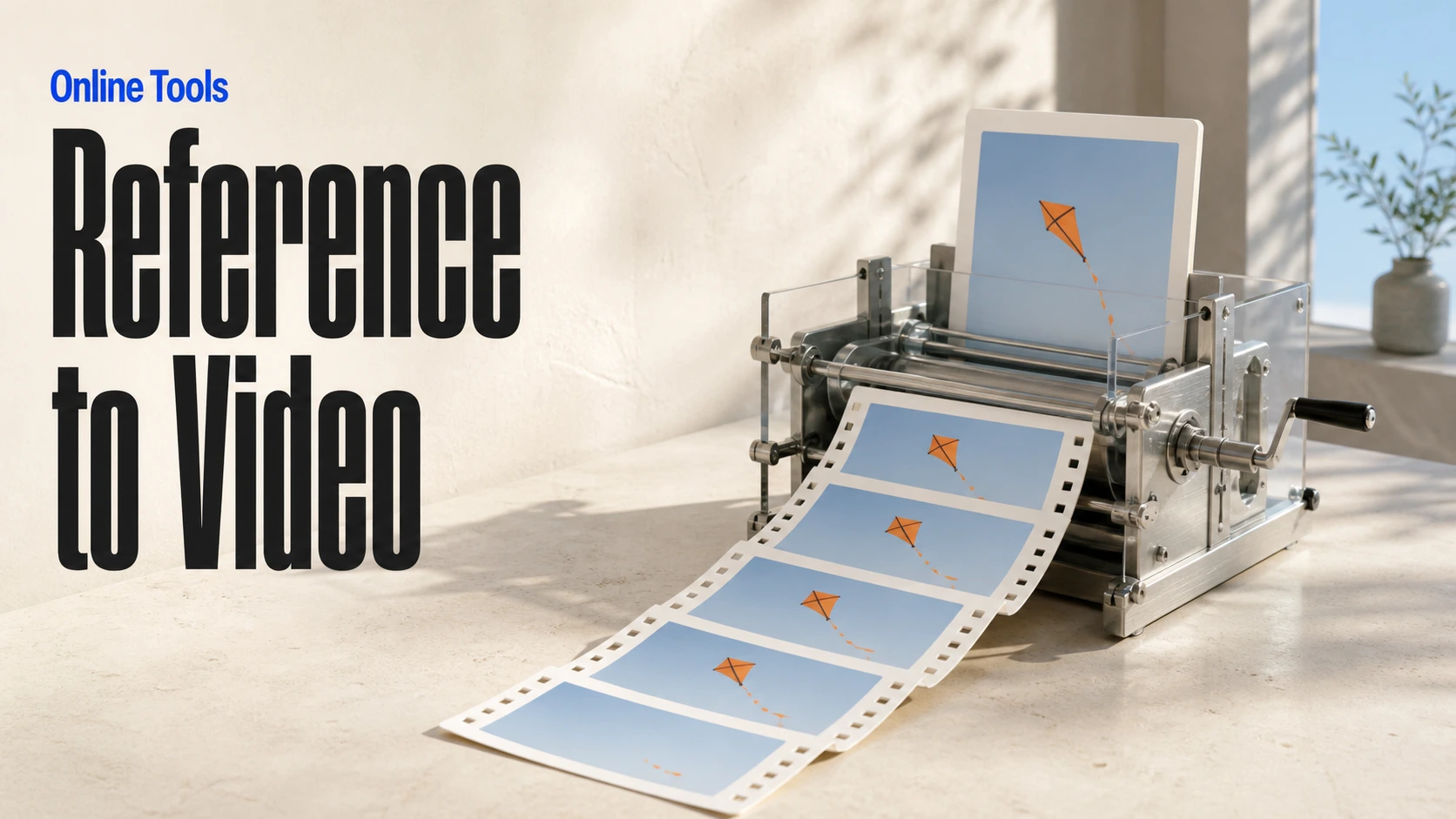
Create consistent videos from reference media
Build visual AI image and video workflows on an infinite canvas
const response = await fetch('https://api.flaq.ai/api/v1/video/task', {
  method: 'POST',
  headers: {
    'Content-Type': 'application/json',
    'Authorization': 'Bearer YOUR_API_KEY'
  },
  body: JSON.stringify({
    model_name: 'gemini-omni-1.1-flash-reference-to-video',
    prompt: 'Use the references to create a cinematic shot of a small boat approaching from the distance',
    aspect_ratio: '16:9',
    resolution: '1080p',
    duration: 8,
    images: ['https://example.com/boat-reference.jpg'],
    videos: ['https://example.com/motion-reference.mp4']
  })
});

const { data } = await response.json();
const taskId = data.task_id;
// Step 2: Poll for results
const taskId = data.task_id;

const pollResult = async (taskId) => {
  const res = await fetch(`https://api.flaq.ai/api/v1/video/${taskId}`, {
    headers: { 'Authorization': 'Bearer YOUR_API_KEY' }
  });
  return res.json();
};

while (true) {
  const pollResultData = await pollResult(taskId);
  const status = pollResultData.data.task_status;

  if (status === 'succeed') {
    console.log(pollResultData.data.task_result.videos[].);
    ;
  }

   (status === ) {
    .(pollResultData..);
    ;
  }

    ( (resolve, ));
}
import requests

response = requests.post(
    'https://api.flaq.ai/api/v1/video/task',
    headers={
        'Content-Type': 'application/json',
        'Authorization': 'Bearer YOUR_API_KEY'
    },
    json={
        'model_name': 'gemini-omni-1.1-flash-reference-to-video',
        'prompt': 'Use the references to create a cinematic shot of a small boat approaching from the distance',
        'aspect_ratio': '16:9',
        'resolution': '1080p',
        'duration': 8,
        'images': ['https://example.com/boat-reference.jpg'],
        'videos': ['https://example.com/motion-reference.mp4']
    }
)

result = response.json()
task_id = result['data']['task_id']
curl -X POST https://api.flaq.ai/api/v1/video/task \
  -H "Content-Type: application/json" \
  -H "Authorization: Bearer YOUR_API_KEY" \
  -d '{
    "model_name": "gemini-omni-1.1-flash-reference-to-video",
    "prompt": "Use the references to create a cinematic shot of a small boat approaching from the distance",
    "aspect_ratio": "16:9",
    "resolution": "1080p",
    "duration": 8,
    "images": ["https://example.com/boat-reference.jpg"],
    "videos": ["https://example.com/motion-reference.mp4"]
  }'
# Step 2: Poll for results
# Replace {task_id} with the task_id returned from the submit response
curl -X GET "https://api.flaq.ai/api/v1/video/{task_id}" \
  -H "Authorization: Bearer YOUR_API_KEY"
# Step 2: Poll for results
task_id = response.json()['data']['task_id']
poll_url = f"https://api.flaq.ai/api/v1/video/{task_id}"

while True:
    poll_result = requests.get(poll_url, headers={'Authorization': 'Bearer YOUR_API_KEY'}).json()
    status = poll_result['data']['task_status']
    if status == 'succeed':
        print(poll_result['data']['task_result']['videos'][0]['url'])
        break
    if status == 'failed':
        print(poll_result['data']['task_status_msg'])
        break
    time.sleep(10)