

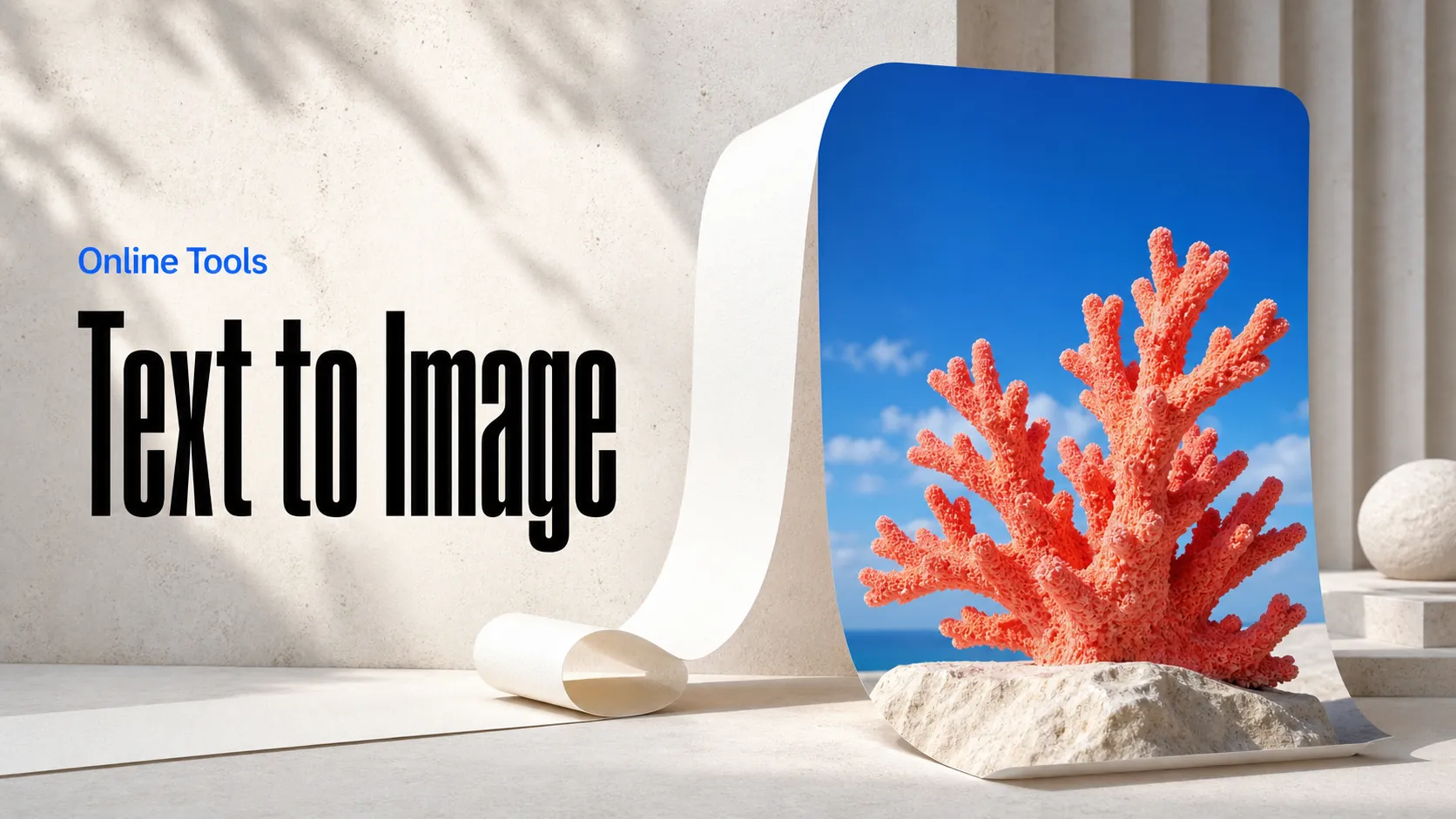
Text to Image
Create AI images from text prompts
Bring product photos and creative images to life with Kuaishou's Kling 4.0 API on Best Image AI. Shape motion with image frames for campaigns and brand stories.
Kuaishou Kling 4.0 Image-to-Video API transforms still images into video clips for developers and creative teams on Best Image AI. Animate product photography, campaign visuals, and illustrations with prompt-guided motion, optional ending frames, and ordered intermediate images. Flexible output settings and frame guidance make this Kling image animation API suitable for social content, brand campaigns, storyboard animation, and creative production workflows.
Image-Based Video Creation: Turn product photos, illustrations, and campaign images into animated clips using a starting image and natural-language motion direction.
Optional Ending Frame: Add a final image to guide the intended visual destination of the sequence when the project needs a defined ending.
Ordered Intermediate Frames: Supply intermediate images in sequence to guide the visual progression. Their order is retained, while the model determines their timing.
Prompt-Based Motion Direction: Describe the intended subject action, environmental movement, and camera behavior alongside the supplied images.
Selectable Output Resolution: Generate at 720p or 1080p according to the delivery requirements of the animation workflow.
Flexible Duration and Framing: Choose the video length and a supported aspect ratio for campaign placements, social content, and image-led creative projects.
Developer-Friendly Integration: Build image animation into creative applications and content pipelines that already manage product photography, campaign assets, or storyboard images.
Input: A required starting image URL and a natural-language prompt describing the desired motion and scene development.
Output: A generated video guided by the opening image, motion prompt, and any additional frame images.
Frame Control: Optionally provide an ending frame and ordered intermediate frames. Starting, ending, and intermediate images share the total frame allowance; intermediate timing is determined by the model.
Resolution: Select a supported output resolution for every request.
Aspect Ratios: Choose from multiple supported formats to suit the intended composition and publishing placement.
Duration: Explicitly set a clip length from 3 to 30 seconds for each request.
Pricing: Per-second billing based on the selected output resolution and generated video duration.
Capabilities: Image-to-video animation with opening-frame input, optional ending and intermediate frames, prompt-based motion direction, and flexible output settings.
E-commerce Product Animation: Animate catalog photography into product showcases, promotional clips, and product-focused stories for online stores and campaigns.
Social Media Creative: Turn campaign images and illustrations into short-form videos for social feeds, advertisements, and creator content.
Storyboard Animation: Use ordered storyboard images and motion prompts to guide the visual progression of advertising sequences and narrative clips.
Brand Campaign Production: Begin with an approved campaign visual and guide the movement and ending with written direction and optional frames.
Portrait & Editorial Animation: Bring portraits, fashion imagery, and artwork into motion for editorial features, digital portfolios, and social content.
Note Please ensure uploaded images and prompts comply with Kuaishou and Best Image AI content safety requirements, and use images you have the right to use. Intermediate frames guide the sequence without exact timestamp control.
Kling 4.0 vs. Runway Gen-4.5 Image-to-Video
Runway Gen-4.5 combines an input
image with motion-focused prompting. Kling 4.0 Image-to-Video supports an opening image, an optional ending image, and
ordered intermediate frames in its Best Image AI workflow.
Kling 4.0 vs. Veo 3.1 Frame-Based Generation
Veo 3.1 supports first-and-last-frame generation. Kling 4.0
Image-to-Video also accepts ordered intermediate images, with their positions in time determined by the model.
Kling 4.0 Image-to-Video vs. Kling 4.0 Reference-to-Video
Reference-to-Video accepts optional image, video, and audio references. Image-to-Video is the appropriate workflow
when an opening image and a sequence of visual frames should guide the clip.
Kling 4.0 Image-to-Video vs. Kling 4.0 Text-to-Video
Text-to-Video creates a clip from a written description without source images. Image-to-Video adds a required visual
starting point for projects built around selected photography, illustrations, or storyboard frames.
Kling 4.0 Image-to-Video vs. Kling 4.0 Video Extend
Video Extend continues existing footage. Image-to-Video starts from a still image and generates the sequence from that
visual foundation rather than requiring a source video.
Explore several AI creation tools for quick image and video workflows in your browser, then scale successful ideas with Best Image AI's production-ready model APIs. Best Image AI provides a unified API layer for all models, making it easy to use and scale your workflows.
Create AI images from text prompts
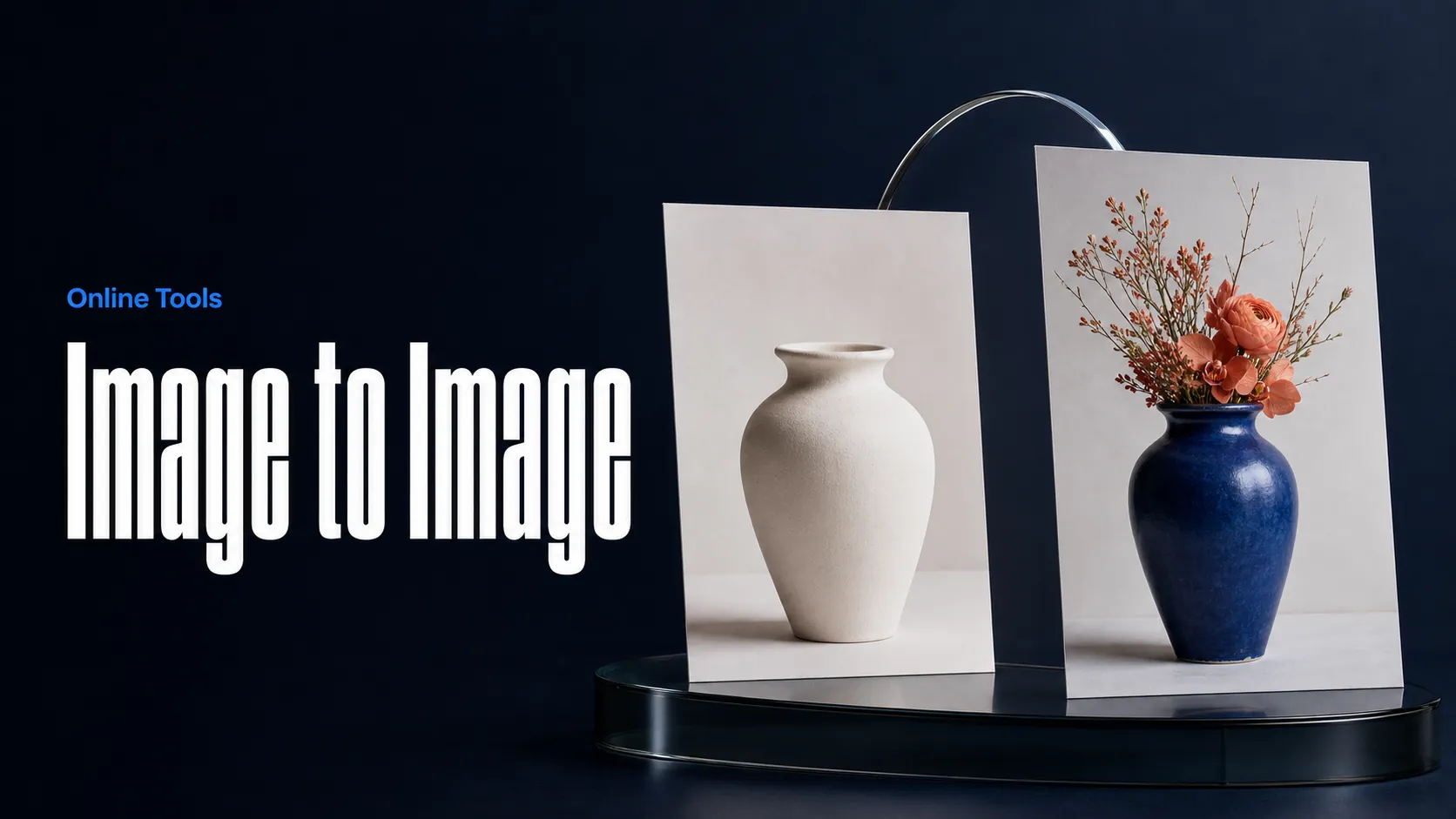
Create AI images from images and text prompts
Create AI videos from text prompts
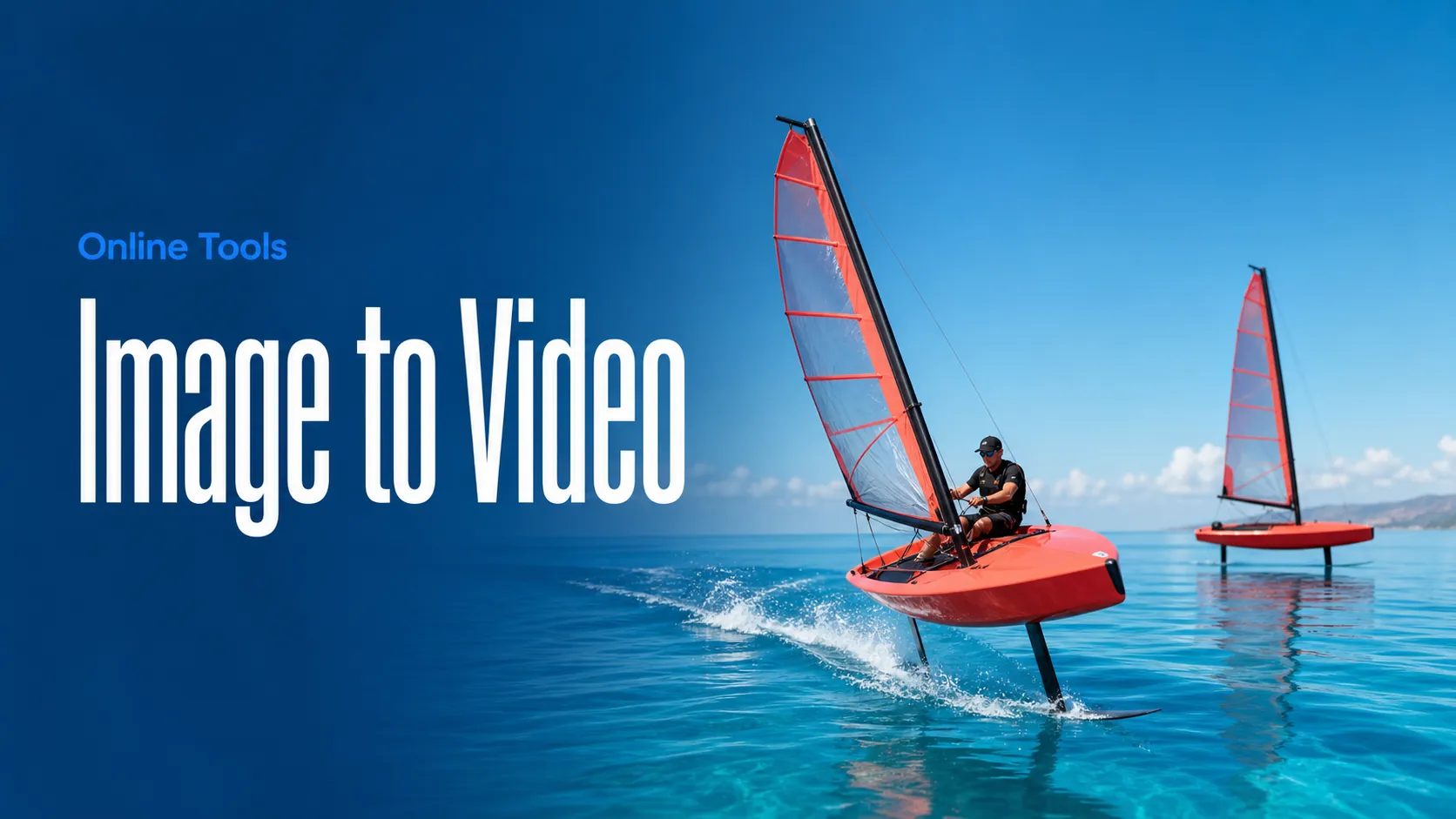
Animate images into AI videos
Create AI images and videos in one unified workspace
Create consistent videos from reference media
Build visual AI image and video workflows on an infinite canvas
// Step 1: Submit generation request
const response = await fetch('https://api.flaq.ai/api/v1/video/task', {
  method: 'POST',
  headers: {
    'Content-Type': 'application/json',
    'Authorization': 'Bearer YOUR_API_KEY'
  },
  body: JSON.stringify({
    model_name: 'kling-v4.0-image-to-video',
    prompt: 'Camera slowly pulls back from the character to reveal the surrounding mountain landscape',
    image_url: 'https://example.com/start-frame.jpg',
    resolution: '720p',
    duration: 8,
    aspect_ratio: '16:9'
  })
});

const { data } = await response.json();
const taskId = data.task_id;
// Step 2: Poll for results
const taskId = data.task_id;

const pollResult = async (taskId) => {
  const res = await fetch(`https://api.flaq.ai/api/v1/video/${taskId}`, {
    headers: { 'Authorization': 'Bearer YOUR_API_KEY' }
  });
  return res.json();
};

while (true) {
  const pollResultData = await pollResult(taskId);
  const status = pollResultData.data.task_status;

  if (status === 'succeed') {
    console.log(pollResultData.data.task_result.videos[].);
    ;
  }

   (status === ) {
    .(pollResultData..);
    ;
  }

    ( (resolve, ));
}
# Step 1: Submit generation request
import requests

response = requests.post(
    'https://api.flaq.ai/api/v1/video/task',
    headers={
        'Content-Type': 'application/json',
        'Authorization': 'Bearer YOUR_API_KEY'
    },
    json={
        'model_name': 'kling-v4.0-image-to-video',
        'prompt': 'Camera slowly pulls back from the character to reveal the surrounding mountain landscape',
        'image_url': 'https://example.com/start-frame.jpg',
        'resolution': '720p',
        'duration': 8,
        'aspect_ratio': '16:9'
    }
)

result = response.json()
task_id = result['data']['task_id']
# Step 1: Submit generation request
curl -X POST https://api.flaq.ai/api/v1/video/task \
  -H "Content-Type: application/json" \
  -H "Authorization: Bearer YOUR_API_KEY" \
  -d '{
    "model_name": "kling-v4.0-image-to-video",
    "prompt": "Camera slowly pulls back from the character to reveal the surrounding mountain landscape",
    "image_url": "https://example.com/start-frame.jpg",
    "resolution": "720p",
    "duration": 8,
    "aspect_ratio": "16:9"
  }'
# Step 2: Poll for results
# Replace {task_id} with the task_id returned from the submit response
curl -X GET "https://api.flaq.ai/api/v1/video/{task_id}" \
  -H "Authorization: Bearer YOUR_API_KEY"
# Step 2: Poll for results
task_id = response.json()['data']['task_id']
poll_url = f"https://api.flaq.ai/api/v1/video/{task_id}"

while True:
    poll_result = requests.get(poll_url, headers={'Authorization': 'Bearer YOUR_API_KEY'}).json()
    status = poll_result['data']['task_status']
    if status == 'succeed':
        print(poll_result['data']['task_result']['videos'][0]['url'])
        break
    if status == 'failed':
        print(poll_result['data']['task_status_msg'])
        break
    time.sleep(10)