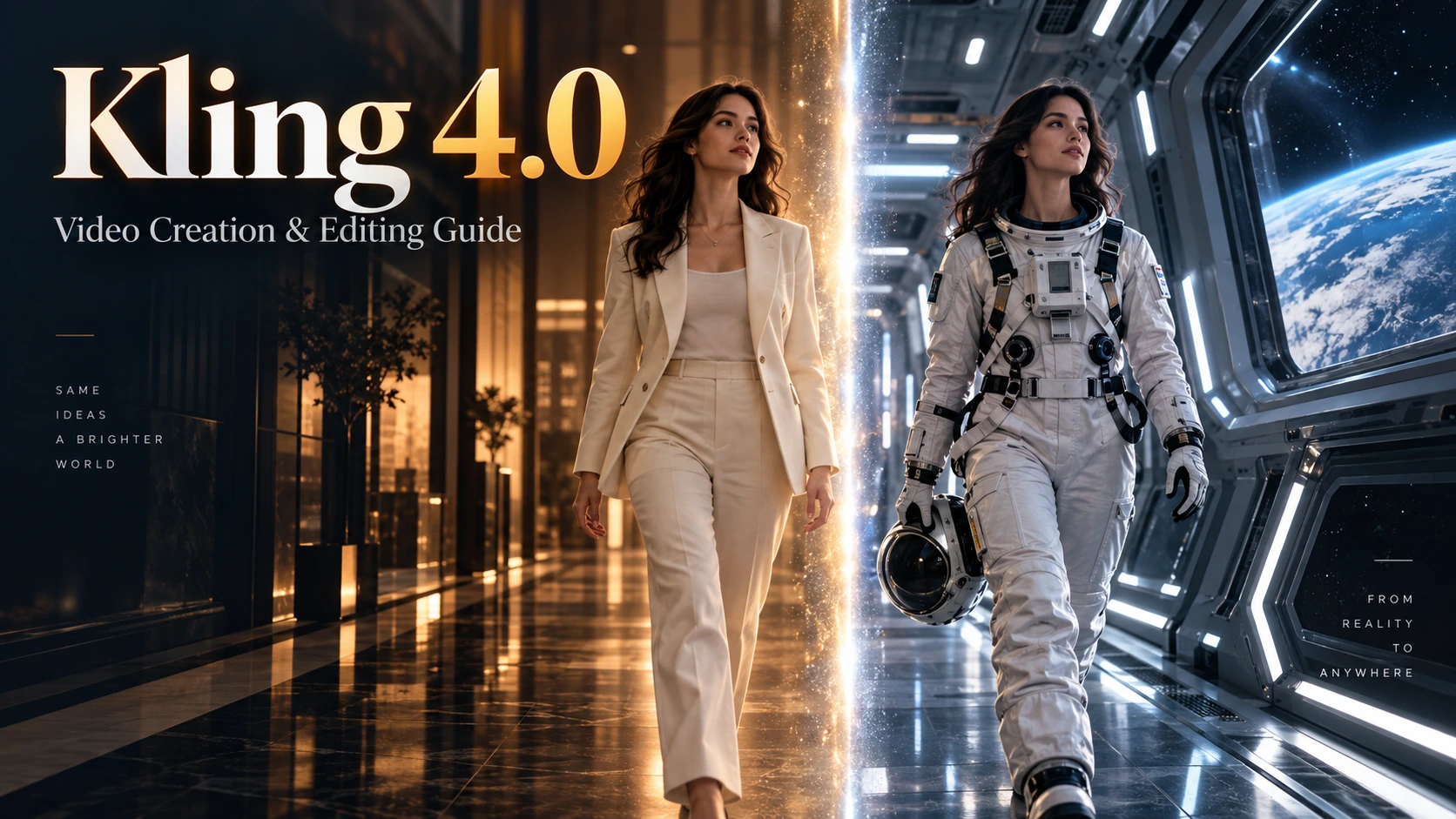
Kling 4.0: A Practical Guide to Features, Prompts, and Video Creation
Kling 4.0 brings video generation and editing into the same creative process. Start with an idea, animate an image, or reshape an existing clip around a new direction. For creators, that opens up practical tasks: clear a distracting foreground, give a character a different visual style, relocate a performance, or build a product reveal around a precise closing image.
The most useful starting point is a specific creative decision. What should change, what should stay recognizable, and what should the audience notice? Here is how to turn those decisions into scenes and prompts.
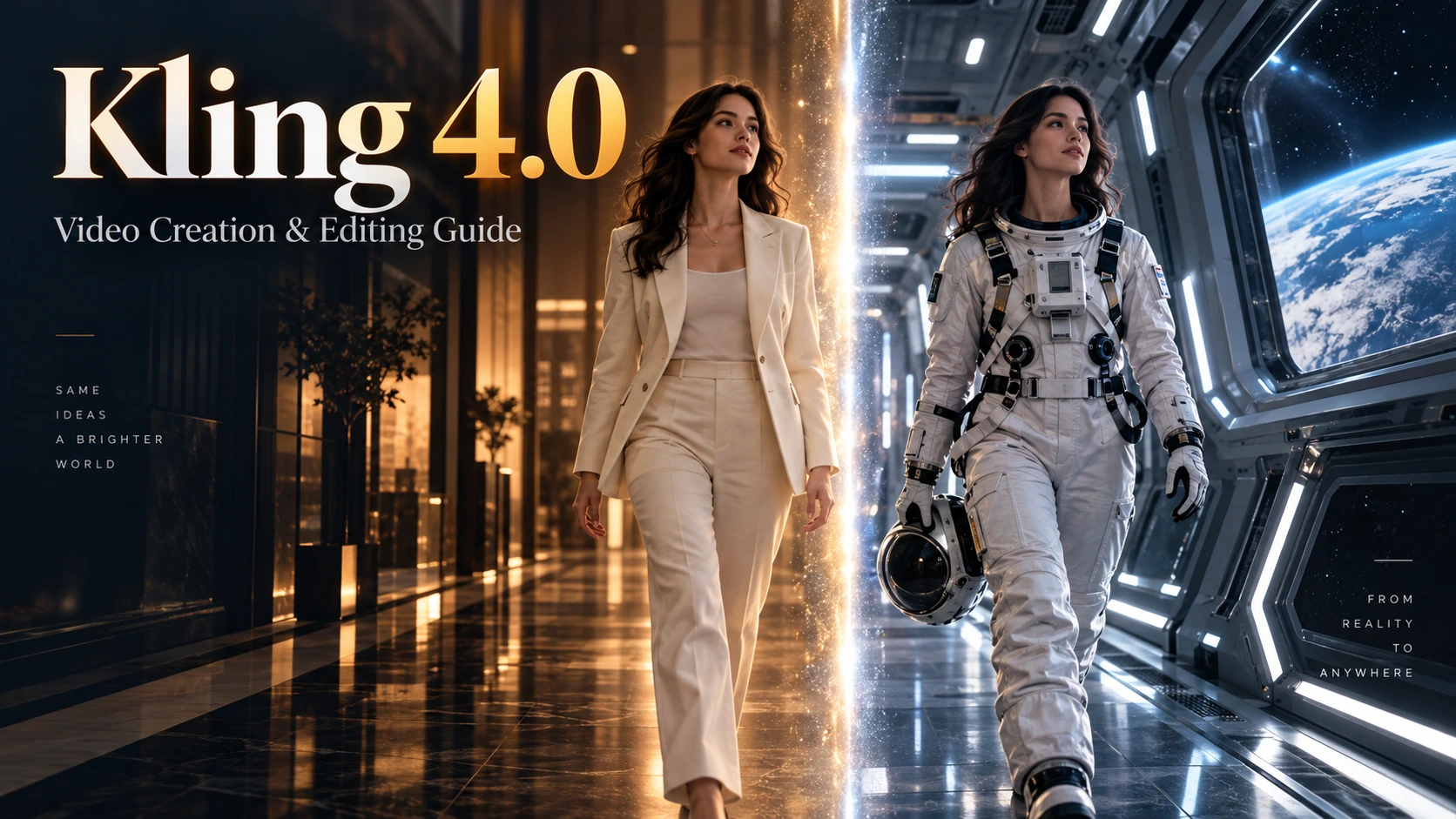
What Kling 4.0 Brings to Video Creation
Kling 4.0 supports text-to-video, image-to-video, reference-driven creation, targeted video editing, and keyframe control. Generation spans 3–30 seconds, with output up to 4K and stereo audio. These capabilities give a short film room for an introduction, a meaningful action, and a deliberate ending.
Use Omni Reference to direct a scene with visual assets, motion references, or voice profiles. Use keyframes to establish specific visual moments. Their dedicated modes are separate; the controls should not be treated as one combined workflow.
For a brand team, the practical value is control over the brief. A storefront clip may need only a cleaner foreground. A social campaign may need a familiar character in a new style. A product launch may depend on reaching an approved final composition. Each task calls for a different kind of instruction.
Start with a Creative Idea in Kling 4.0 Text-to-Video
Choose text-to-video when the idea comes before the visual assets. For example, a travel campaign might begin with a quiet train journey through misty hills. Write the action and viewpoint first, then specify the atmosphere and sound.
A passenger sits beside a train window as misty green hills pass outside. Begin on the passenger's reflection, then slowly shift focus to the landscape. Soft morning light, gentle carriage vibration, and the rhythmic sound of wheels on the track. No dialogue or background music.
The prompt has one visual progression: attention moves from the traveler to the destination. That is enough for a useful opening shot. Explore the Kling 4.0 Text to Video model page for the text-led creation path on Best Image AI.
Kling 4.0 Image-to-Video: Turn Existing Images into Moving Scenes
Choose an image-to-video workflow when the composition or subject is already established. A product photograph, campaign visual, or character illustration gives the shot a concrete starting point. Describe the movement that should unfold from it: a camera approaching a product, fabric catching a breeze, or a character turning toward a doorway.
Keep the action compatible with the image. A close product crop works well for a small camera move; a full-body character scene gives more space for walking or turning. See the Kling 4.0 Image to Video page for the image-led path. Best Image AI's Kling 4.0 integration is not yet available. Its model pages provide availability information; the general creation tools offer their own model selections and supported controls.
Remove Distracting Elements with Kling 4.0 Video Editing
A café has a welcoming exterior shot: morning sunlight, outdoor seating, and a clear view toward the entrance. But a passerby crosses the foreground and blocks the door. The useful edit is narrow—remove the obstruction while preserving the location and the camera's original movement.
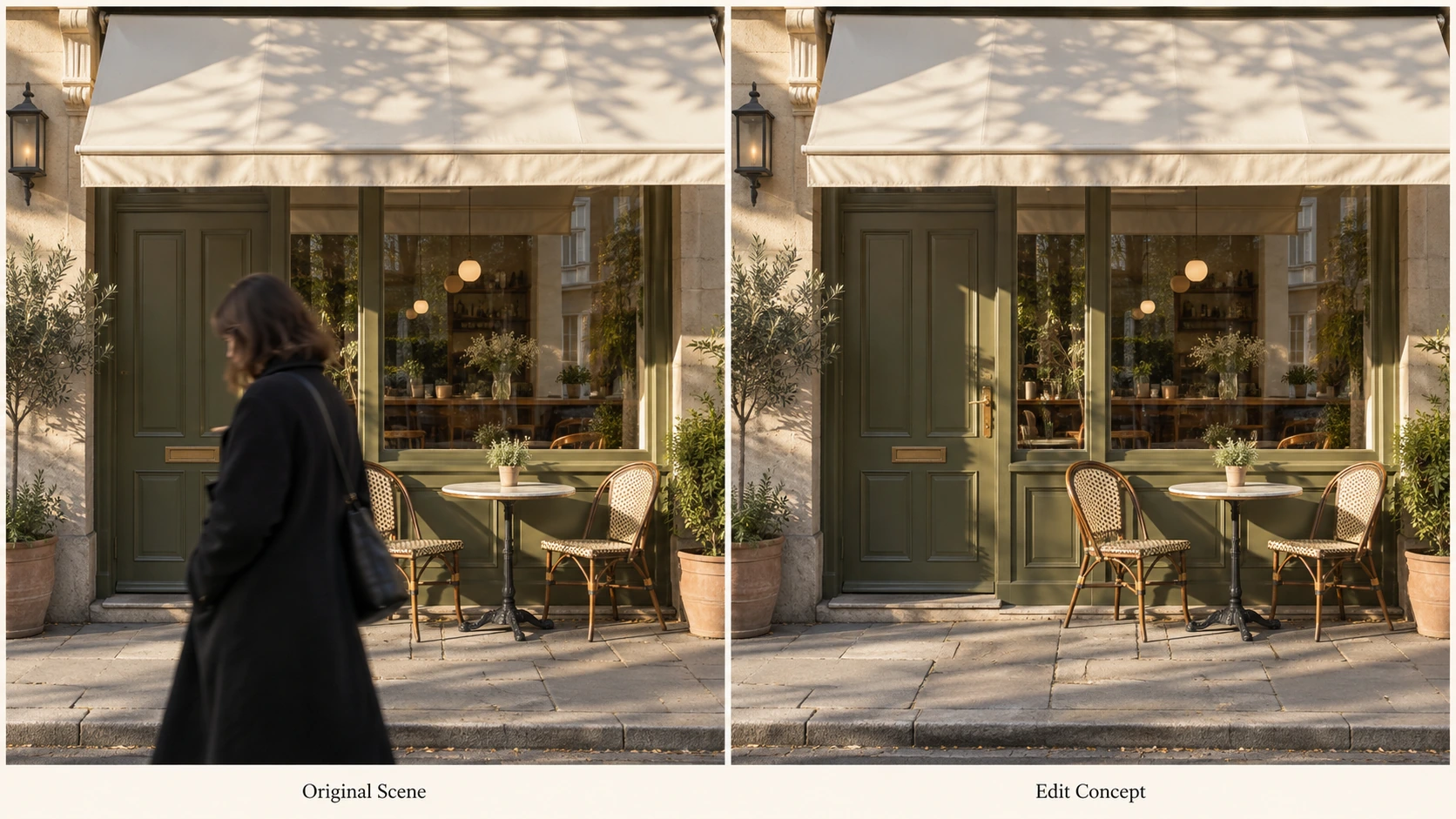
Clear the foreground while preserving the storefront, seating, and framing.
Start with the existing clip and identify the person by position and appearance. Then state the parts of the scene that must remain. This is more precise than asking for a generally “cleaner” or “better” video, which leaves the intended change ambiguous.
Prompt example:
Edit @Video1. Remove the passerby in the dark coat crossing the foreground in front of the café entrance. Preserve the storefront, outdoor chairs, morning lighting, camera movement, and clip duration. Reconstruct the doorway and pavement behind the passerby so they remain continuous with the surrounding scene.
For this kind of promotional clip, inspect the doorway edges, chair legs, and paving lines as the obstruction moves through the frame. Those details determine whether the location remains convincing. Removing an unwanted object should not change the visual identity of the business.
The same approach is useful for an object blocking a product or a distracting item near the edge of an interior shot: specify the target, then protect the surrounding composition.
Change a Character's Style Without Redesigning the Scene
A pet creator has a clip of an orange cat walking across a living-room rug. The goal is a playful version in which the cat becomes a wool character while the room keeps its photographic appearance. The contrast between a tactile character and a familiar setting becomes the creative idea.
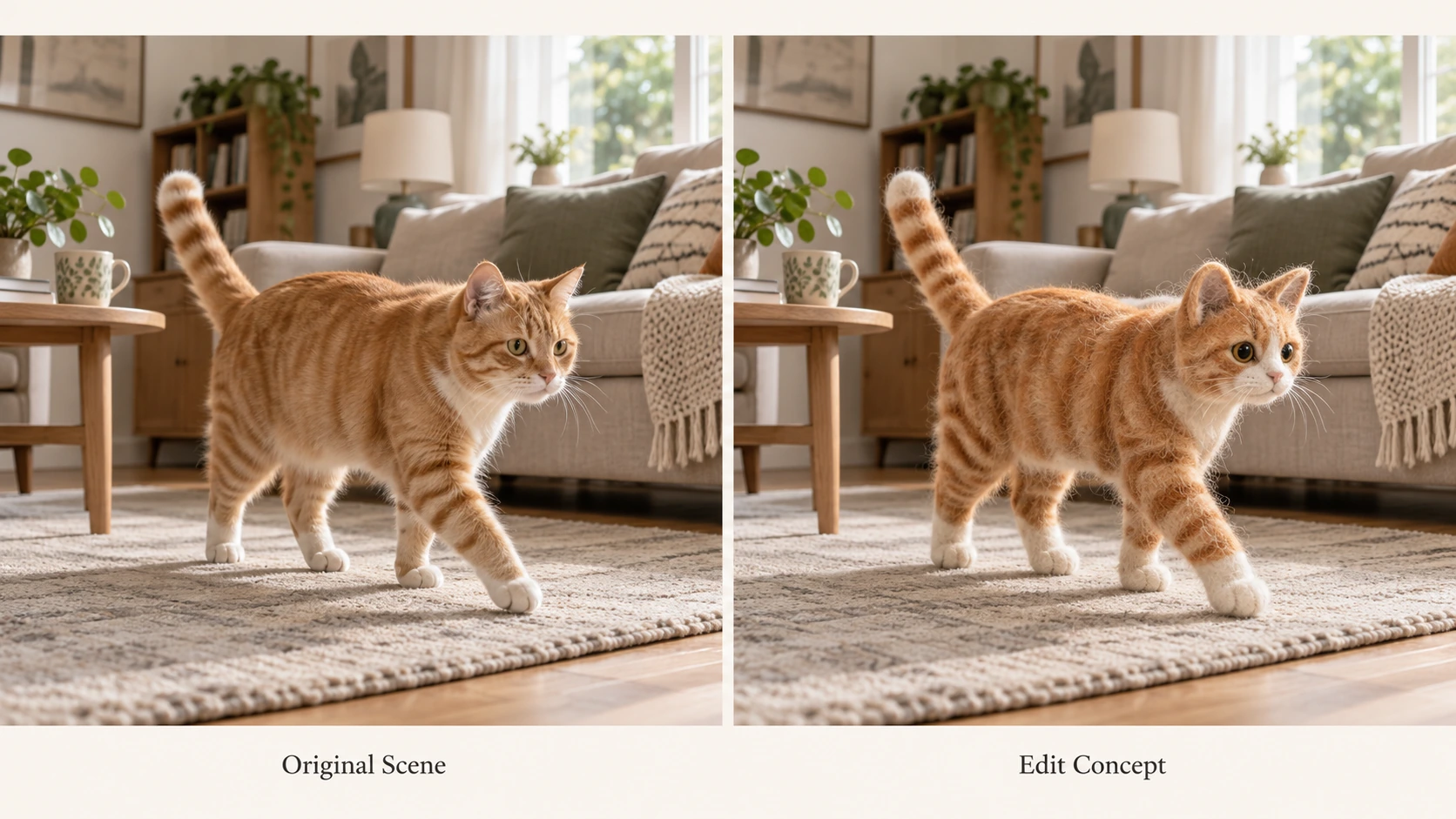
Give the character a felt finish while keeping the room and pose consistent.
Define the transformation at the subject level. Specify the felt material, the recognizable orange-and-cream markings, and the relationship to the original movement. Avoid an instruction such as “make this a felt animation” when you want the furniture and background to stay realistic.
Prompt example:
Edit @Video1. Transform only the orange cat into a handcrafted needle-felt character with soft wool fibers. Preserve its orange-and-cream markings, size, position, walking direction, and action timing. Keep the living room, furniture, camera movement, lighting, and original audio unchanged.
Choose the visual treatment to suit the campaign. For this example, rounded felt features create a gentle, handmade character. Keep the material description consistent across the body, face, and paws rather than mixing wool with glossy plastic surfaces. To explore the character treatment before applying it to footage, use image-to-image editing on a still frame and select a reference that captures the intended material.
Review the change across the whole action. The character should remain recognizable when it turns, and the contact with the rug should still make sense. A single appealing frame is only one part of a successful moving scene.
Replace Characters and Settings for a New Video Concept
Sometimes the performance already works, but the story world needs to change. A person walking toward the camera in an office corridor could become an astronaut approaching through a space station. The goal is to retain the movement and shot structure while replacing the costume and surroundings.
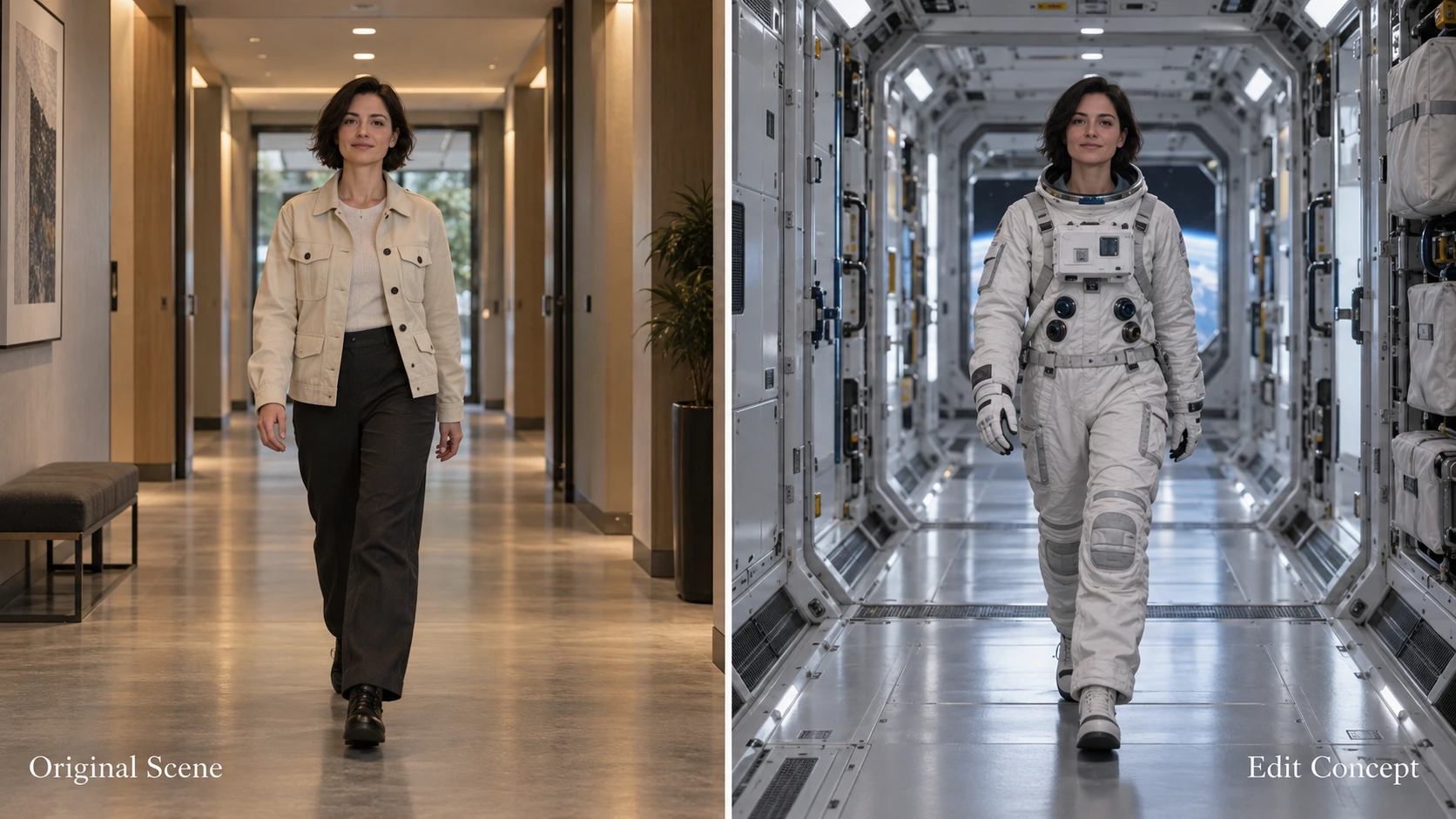
Carry the walking performance and framing into a different character treatment and setting.
Prepare the original clip, an astronaut appearance reference, and a space-station environment reference. Choose images with useful visual information: a readable suit silhouette and a corridor perspective compatible with the source shot. This makes the creative direction easier to communicate. If you need an original environment reference, develop the corridor with the Text to Image Generator before using the selected visual in your brief.
Prompt example:
Edit @Video1. Use @Image1 for the astronaut's suit and appearance, and @Image2 for the space-station corridor. Preserve the original walking sequence, body position in the frame, camera path, and shot timing. Match the new corridor to the source perspective, with lighting appropriate to the station interior.
Assign each reference a clear job. The astronaut image defines the character treatment; the environment image defines the setting. Neither should accidentally introduce a different camera angle or an unrelated action.
This is useful when a creative team wants to explore a themed version of an existing performance. Decide in advance which parts of that performance are essential—the approach, a pause, or a glance—and describe those details explicitly.
Build a Product Reveal with Kling 4.0 Keyframes
For a launch film, the last image can matter as much as the opening. Imagine a speaker campaign with two approved compositions: an empty display plinth and the speaker centered on that same plinth. The task is to connect them with an intentional product entrance.
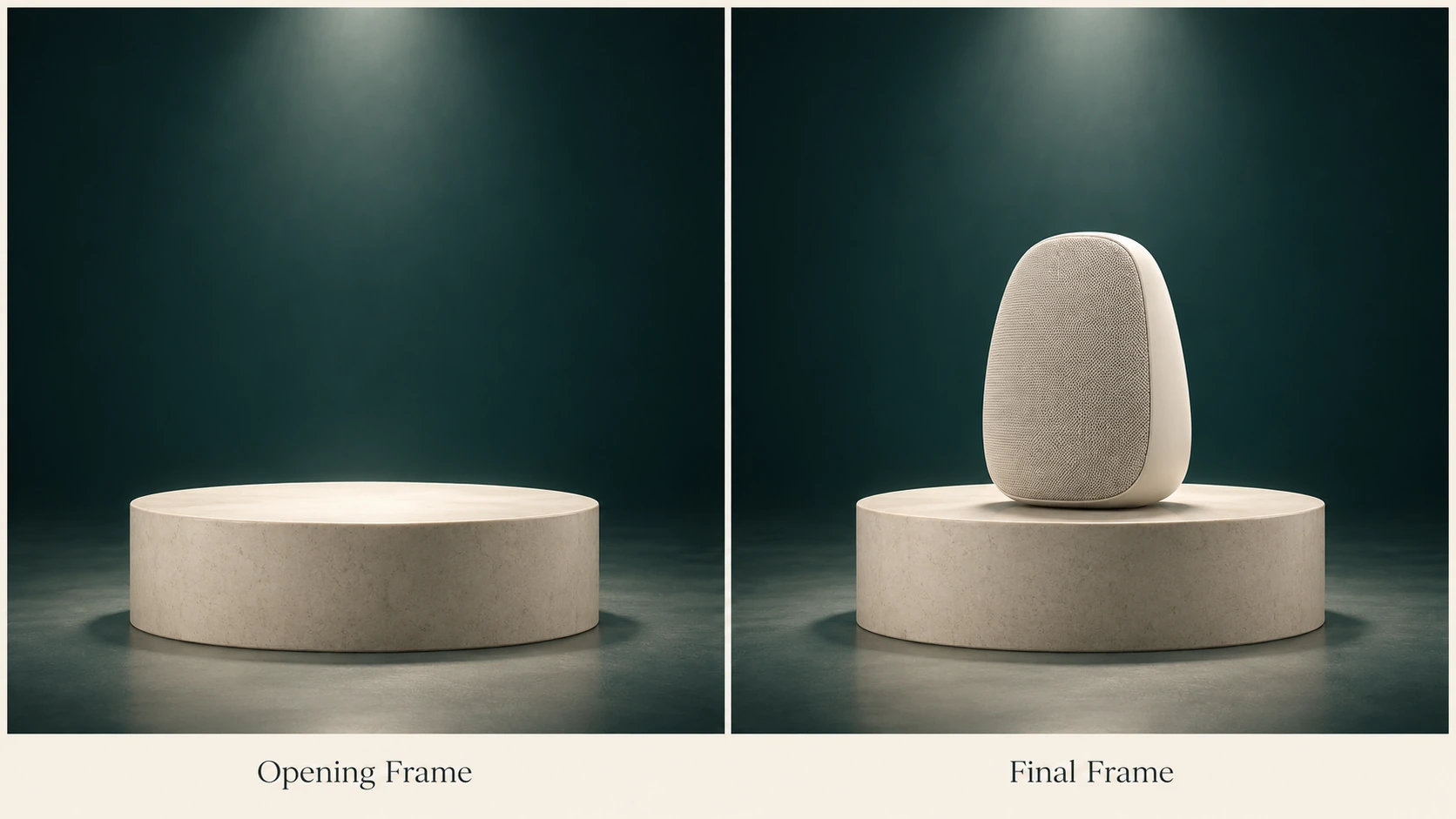
Define the opening and final compositions, then direct the action between them.
Keep the prepared images aligned: the same camera height, plinth dimensions, background, and lighting setup. An image-to-image workflow can help develop a related closing composition from the opening visual; check the two images together before using them as endpoints. Then choose a believable transition. Here, a hand places the speaker and withdraws, leaving the product alone for the closing hold.
Prompt example:
Use @Image1 as the opening frame and @Image2 as the final frame. Hold briefly on the empty plinth. A hand enters from the right, gently places the speaker in the final position, and withdraws. Keep the camera fixed and the studio lighting consistent. End with a quiet hold on the speaker. Soft placement sound, no dialogue.
Kling 4.0 supports up to ten keyframe images. Add an intermediate image when a particular moment needs its own composition, such as the instant the product settles on the display. For a simple reveal, start with the two endpoints and a clear action between them.
These images describe different moments in time. They are not an instruction to replace an object throughout an existing clip, as in the editing scenarios above.
Write Kling 4.0 Prompts Around the Intended Change
For existing footage, begin with Edit @Video1. Reference-based generation and editing are different requests; naming the operation helps establish which one you intend. In these prompt examples, @Video1 denotes the source clip, while @Image1 and @Image2 identify supplied images.
Build an editing prompt in this order:
- Name the change: remove the foreground passerby, transform the cat, or replace the setting.
- Define the target: use location, appearance, or a reference image to identify it.
- Protect the rest: specify the movement, composition, timing, and details that should remain.
- Direct the sound: retain the existing audio or describe the required dialogue and ambience.
For new scenes, organize the brief around subject, action, camera, and sound. For keyframes, explain what happens between the prepared images. Keep instructions specific enough that you can judge whether the resulting scene follows them.
For more prompt ideas, explore the Awesome Kling 4.0 prompt collection on GitHub, with examples for product ads, cinematic scenes, character animation, and reference-based editing. Choose a recipe that fits your project, then adapt its subject, camera direction, timing, and sound to your own materials.
Kling 4.0 FAQ
Can Kling 4.0 edit an existing video?
Yes. Targeted editing includes removing or adding elements, changing characters or environments, and altering visual style. Name the intended edit and the details that must remain consistent.
Can I change only one subject's style?
Yes. Make the scope explicit. For a felt cat in a realistic room, direct the style change at the cat and separately preserve the environment, lighting, and camera movement.
How should I choose between references and keyframes?
Use references to define the ingredients of a scene, such as character appearance, environment, or movement. Use keyframes when specific visual moments and their place in the sequence are central to the brief. For other asset-led projects, the Reference to Video tool provides a separate place to explore the models and reference inputs it supports.
How do I direct voices and background sound?
Specify the speaker, dialogue, language, and ambient sound in the prompt. Voice profiles can guide a speaker's voice. Audio input is for voice references rather than uploaded music or sound effects; describe those requirements in words.
Will every product detail remain exactly the same?
Treat consistency as something to inspect. Check logos, seams, proportions, and reflections throughout the clip, particularly during movement or occlusion. Select a result only after the details important to your campaign hold up.
Conclusion: Turn a Specific Creative Goal into a Kling 4.0 Brief
The strongest starting point for Kling 4.0 is a clear task: reveal a storefront, transform a character, move a performance into a new world, or land on an approved product composition. Match that task to the appropriate workflow, give each reference a purpose, and explain both the change and the details worth preserving.
That keeps the process connected to the finished work you need—a promotional clip, a playful social video, a story concept, or a product launch film. Start with the Text to Video Generator for a written idea or the Image to Video Generator for an existing visual, choosing from the models each tool currently supports.
For your next project, browse the Awesome Kling 4.0 prompt collection and adapt a recipe to your own scene, references, and creative direction.