
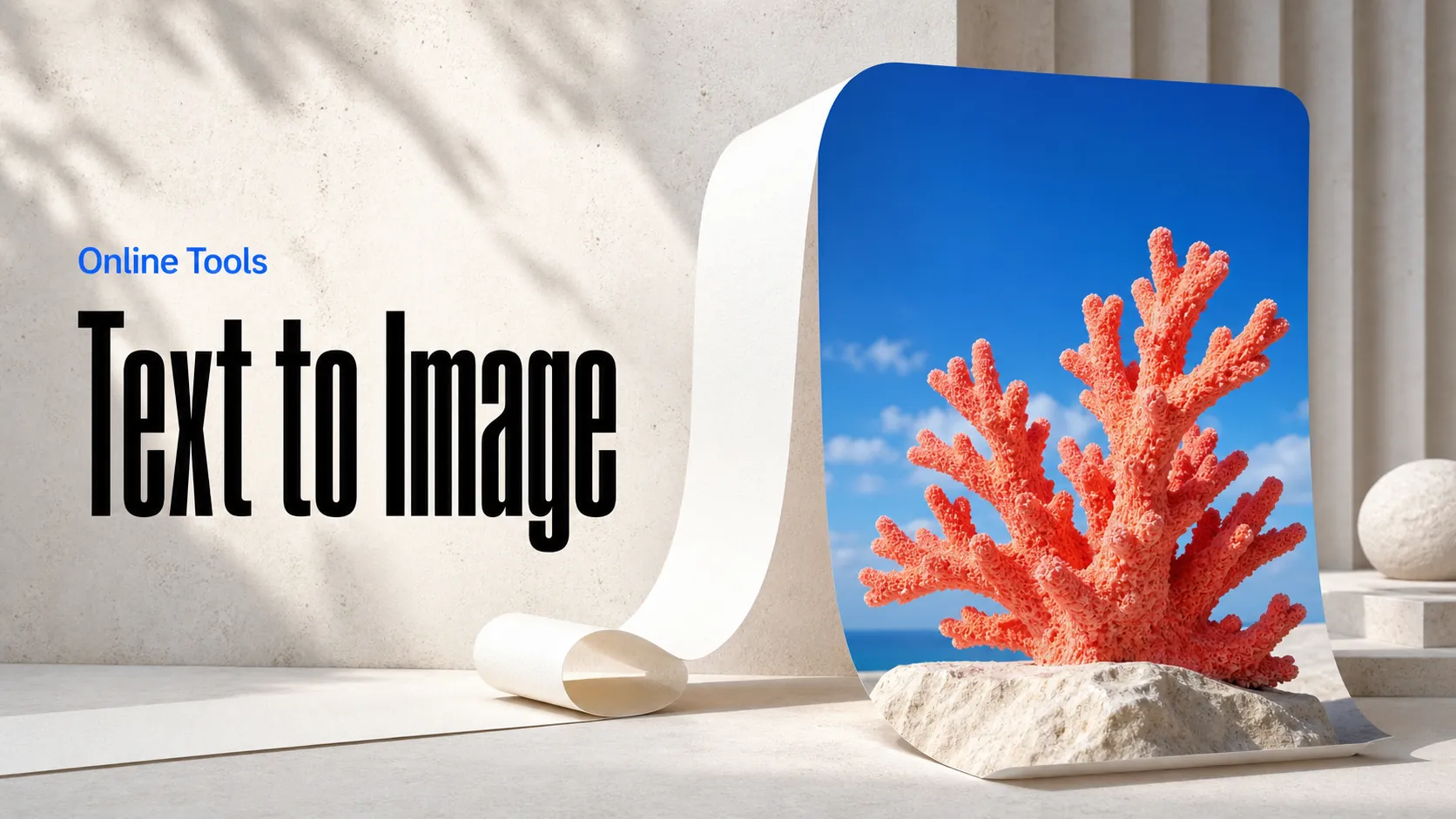
Text to Image
Create AI images from text prompts
Animate a still image with the Google Gemini Omni 1.2 Flash API. Describe the movement and optionally supply a final image to guide the last frame of your clip. Render in 4K.
Gemini Omni 1.2 Flash Image-to-Video API creates a short video from a starting image and a written motion brief. Available on Best Image AI, it supports an optional ending image to guide where the sequence finishes. Use it to develop motion from product photography, artwork, or storyboard frames, with output settings for landscape and portrait video.
Still-Image Animation: Develop motion from a supplied image, using its composition as the opening visual for the generated clip.
Frame-to-Frame Transitions: Guide a sequence between opening and ending imagery when the scene has a defined visual destination.
Written Motion Direction: Accompany the imagery with a prompt describing the action and how the scene should develop.
Input: Supply a starting image and a prompt explaining the intended movement. An ending image is optional.
Output Settings: Choose landscape or portrait framing, resolution, and clip length. Including an ending image reduces the maximum supported duration; see the API documentation for current limits.
Output: Retrieve the generated video after the image-to-video task completes.
Billing: Usage is billed per second of requested output duration at the selected resolution; adding an ending image does not add a separate charge.
Product Photography Animation: Use a product still as the opening frame for a short promotional video concept.
Storyboard Transitions: Supply opening and ending artwork to explore a moving sequence between planned frames.
Social Asset Adaptation: Develop video versions of existing campaign images or editorial illustrations.
Motion Brief Reviews: Pair approved artwork with different motion descriptions to explore a scene before further production work.
Note Describe the motion between the supplied frames, rather than only describing the images themselves. An ending image guides the final visual state and also reduces the maximum supported clip length.
Compared with Text-to-Video: Image-to-Video requires an opening image. Text-to-Video is the corresponding choice when the scene should begin from a written description without an image input.
Compared with Reference-to-Video: Image-to-Video assigns explicit starting and optional ending roles to images. Reference-to-Video accepts image and video materials as references for generating a new clip.
Compared with Video Edit: Image-to-Video creates motion from still imagery with a selected duration and orientation. Video Edit starts with existing footage, which determines the output timing and aspect ratio.
Explore several AI creation tools for quick image and video workflows in your browser, then scale successful ideas with Best Image AI's production-ready model APIs. Best Image AI provides a unified API layer for all models, making it easy to use and scale your workflows.
Create AI images from text prompts
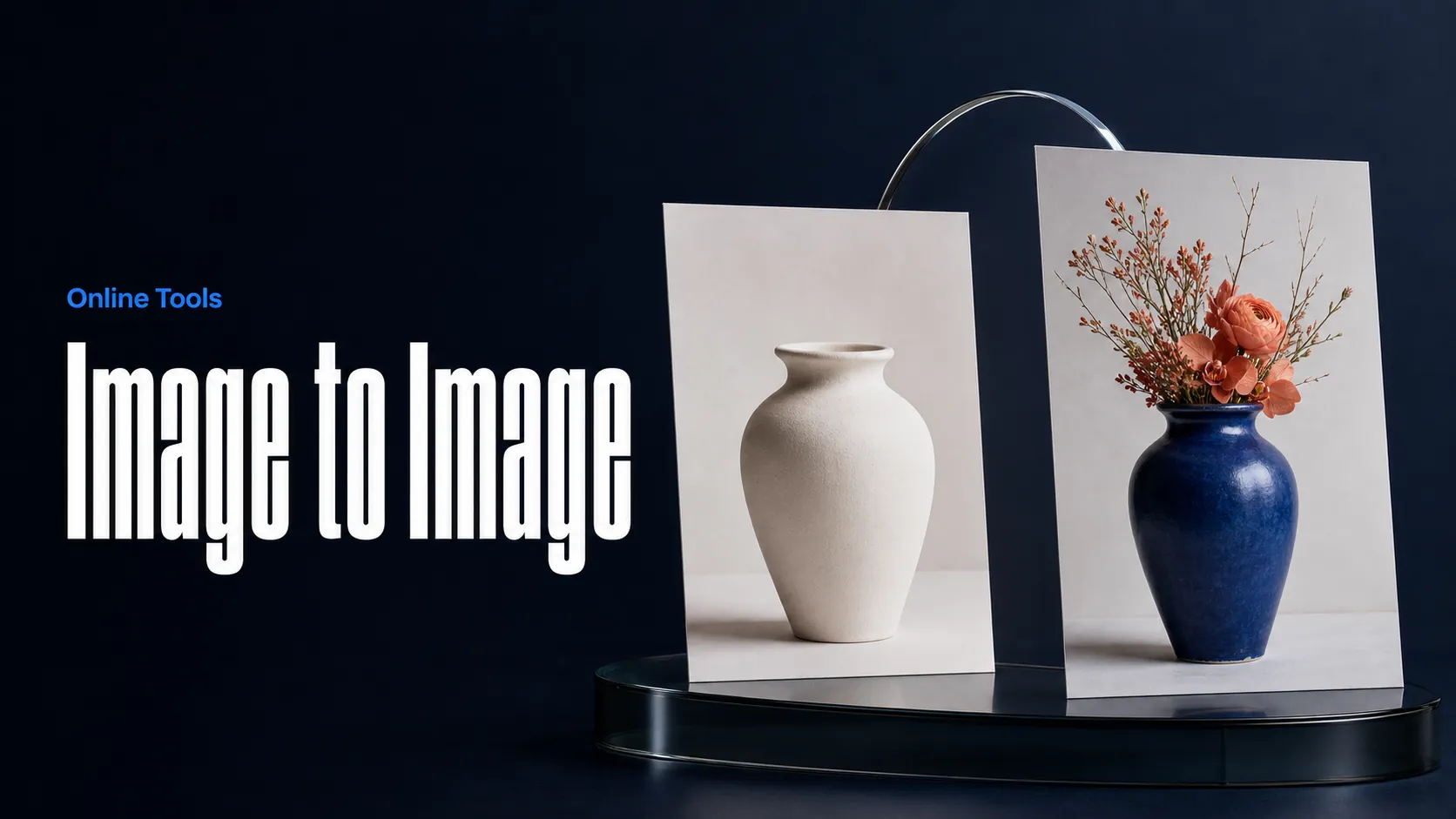
Create AI images from images and text prompts
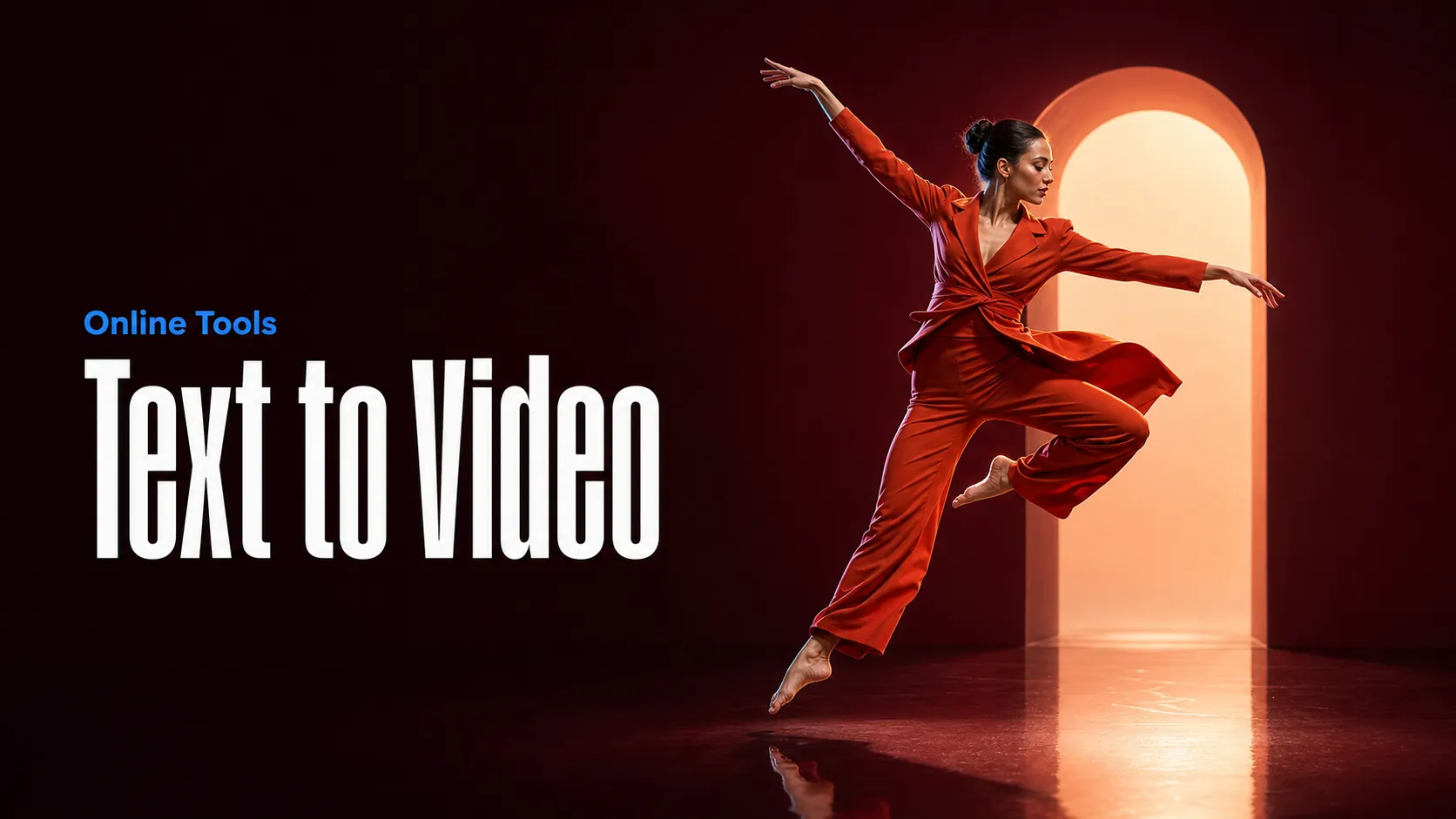
Create AI videos from text prompts
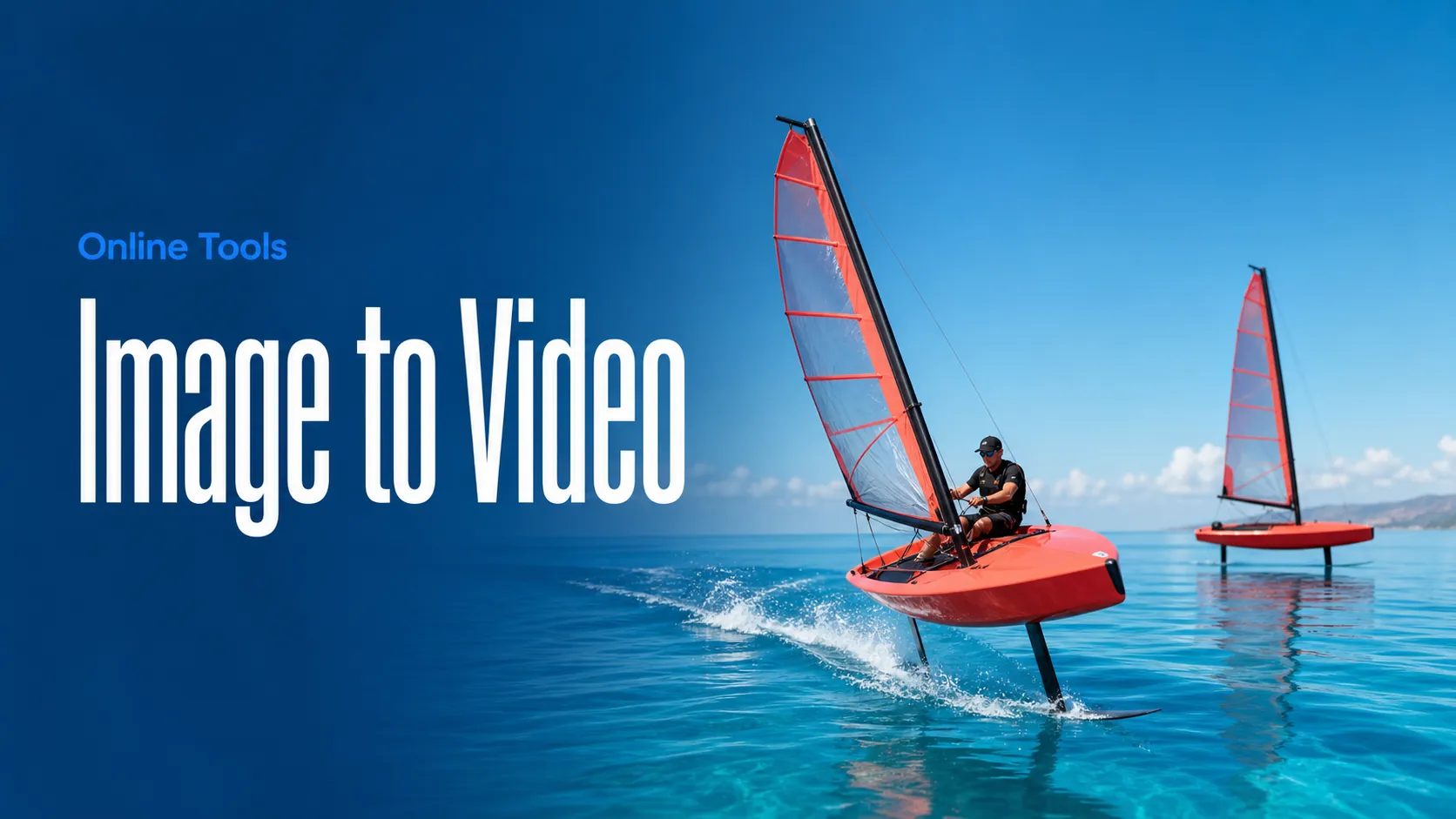
Animate images into AI videos
Create AI images and videos in one unified workspace
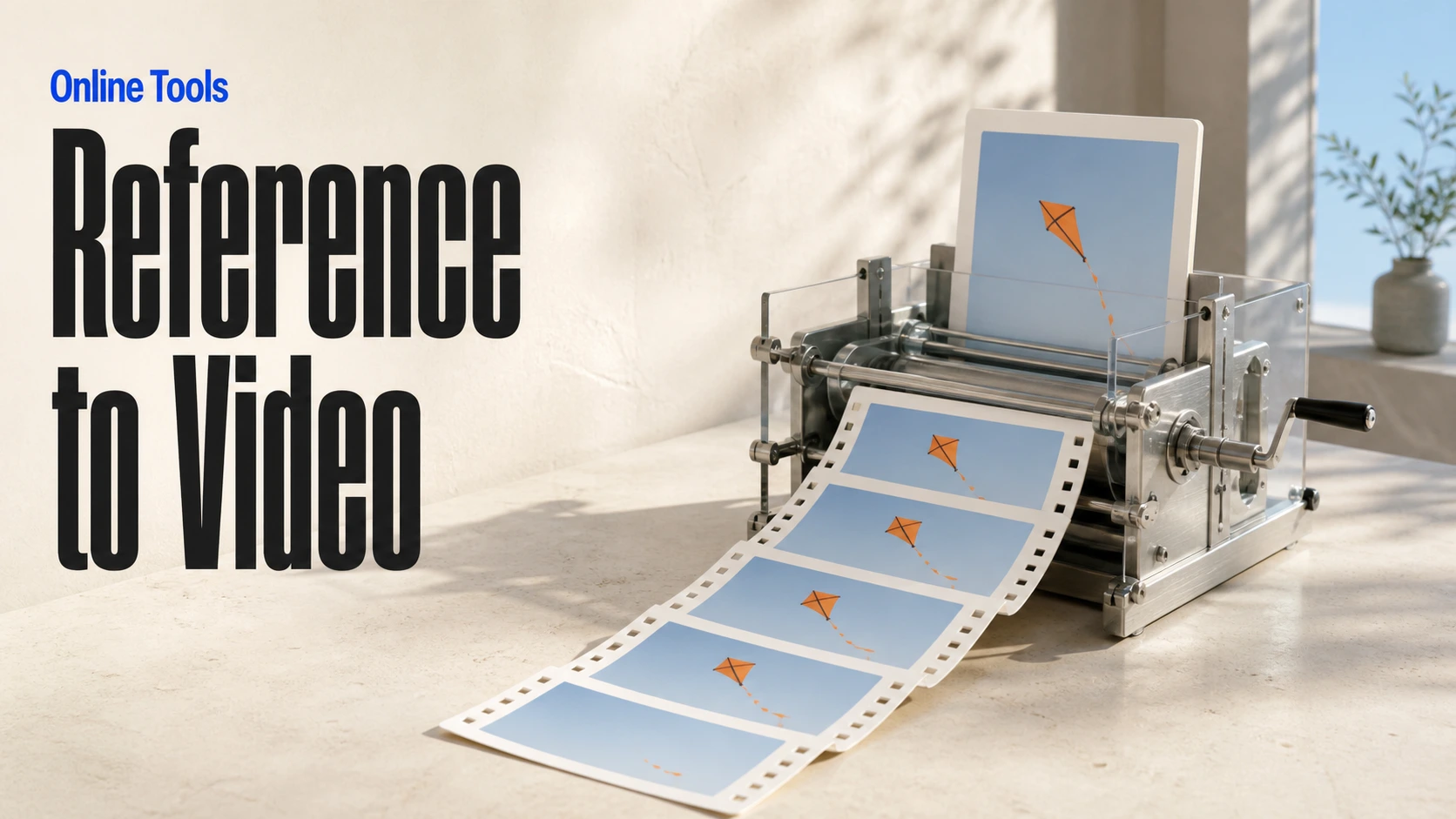
Create consistent videos from reference media
Build visual AI image and video workflows on an infinite canvas
const response = await fetch('https://api.flaq.ai/api/v1/video/task', {
  method: 'POST',
  headers: {
    'Content-Type': 'application/json',
    'Authorization': 'Bearer YOUR_API_KEY'
  },
  body: JSON.stringify({
    model_name: 'gemini-omni-1.2-flash-image-to-video',
    prompt: 'The girl walks toward the camera while the city lights shimmer behind her',
    image_url: 'https://example.com/start-frame.jpg',
    image_end_url: 'https://example.com/end-frame.jpg',
    aspect_ratio: '9:16',
    resolution: '1080p',
    duration: 8
  })
});

const { data } = await response.json();
const taskId = data.task_id;
// Step 2: Poll for results
const taskId = data.task_id;

const pollResult = async (taskId) => {
  const res = await fetch(`https://api.flaq.ai/api/v1/video/${taskId}`, {
    headers: { 'Authorization': 'Bearer YOUR_API_KEY' }
  });
  return res.json();
};

while (true) {
  const pollResultData = await pollResult(taskId);
  const status = pollResultData.data.task_status;

  if (status === 'succeed') {
    console.log(pollResultData.data.task_result.videos[].);
    ;
  }

   (status === ) {
    .(pollResultData..);
    ;
  }

    ( (resolve, ));
}
import requests

response = requests.post(
    'https://api.flaq.ai/api/v1/video/task',
    headers={
        'Content-Type': 'application/json',
        'Authorization': 'Bearer YOUR_API_KEY'
    },
    json={
        'model_name': 'gemini-omni-1.2-flash-image-to-video',
        'prompt': 'The girl walks toward the camera while the city lights shimmer behind her',
        'image_url': 'https://example.com/start-frame.jpg',
        'image_end_url': 'https://example.com/end-frame.jpg',
        'aspect_ratio': '9:16',
        'resolution': '1080p',
        'duration': 8
    }
)

result = response.json()
task_id = result['data']['task_id']
curl -X POST https://api.flaq.ai/api/v1/video/task \
  -H "Content-Type: application/json" \
  -H "Authorization: Bearer YOUR_API_KEY" \
  -d '{
    "model_name": "gemini-omni-1.2-flash-image-to-video",
    "prompt": "The girl walks toward the camera while the city lights shimmer behind her",
    "image_url": "https://example.com/start-frame.jpg",
    "image_end_url": "https://example.com/end-frame.jpg",
    "aspect_ratio": "9:16",
    "resolution": "1080p",
    "duration": 8
  }'
# Step 2: Poll for results
# Replace {task_id} with the task_id returned from the submit response
curl -X GET "https://api.flaq.ai/api/v1/video/{task_id}" \
  -H "Authorization: Bearer YOUR_API_KEY"
# Step 2: Poll for results
task_id = response.json()['data']['task_id']
poll_url = f"https://api.flaq.ai/api/v1/video/{task_id}"

while True:
    poll_result = requests.get(poll_url, headers={'Authorization': 'Bearer YOUR_API_KEY'}).json()
    status = poll_result['data']['task_status']
    if status == 'succeed':
        print(poll_result['data']['task_result']['videos'][0]['url'])
        break
    if status == 'failed':
        print(poll_result['data']['task_status_msg'])
        break
    time.sleep(10)